How Delta works, start to finish.
Setup, the Apple Watch, training, and every screen in between. Each section stands alone and every heading is a stable link. Check your app version against the plate above in Settings, then Diagnostics.
Install Delta on your iPhone #
Delta is on the App Store for iPhone and Apple Watch. Delta requires an iPhone; the Apple Watch app is optional and installs later in setup.
Delta costs $12.99 a month or $99.99 a year. The annual plan starts with a one-month free trial, long enough for readiness to calibrate (14 nights) and for Progress to start reading as a trend around the fifth session.
First launch and your account #
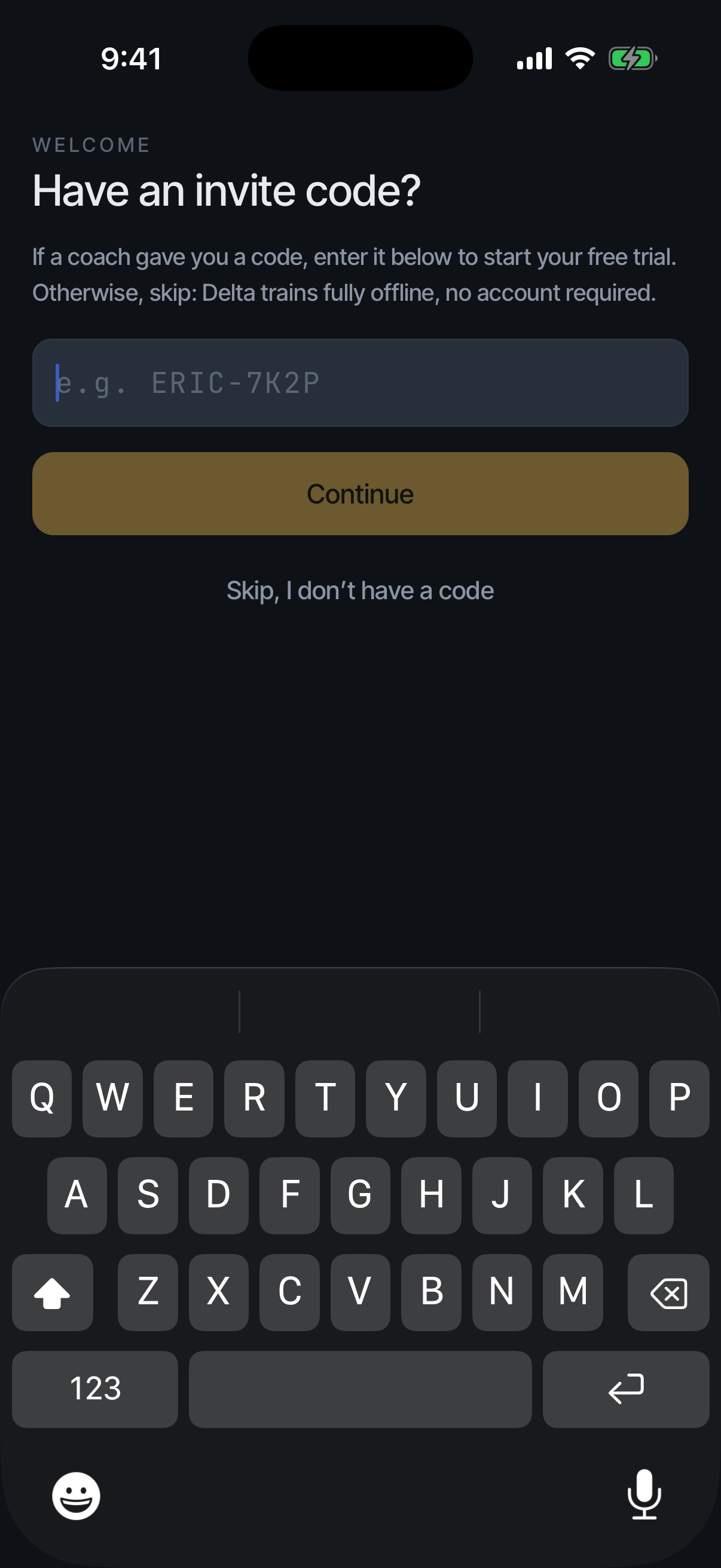
First launch is a single screen: the invite code. Enter your code, or tap Skip and start training, signed out. Your first workout needs no account and no payment; the one after it needs a plan, and signing in alone does not change that. If you decide to start a subscription, that first workout will be part of your saved history.
Until then it lives on this device: erasing local data or reinstalling before you subscribe loses it.
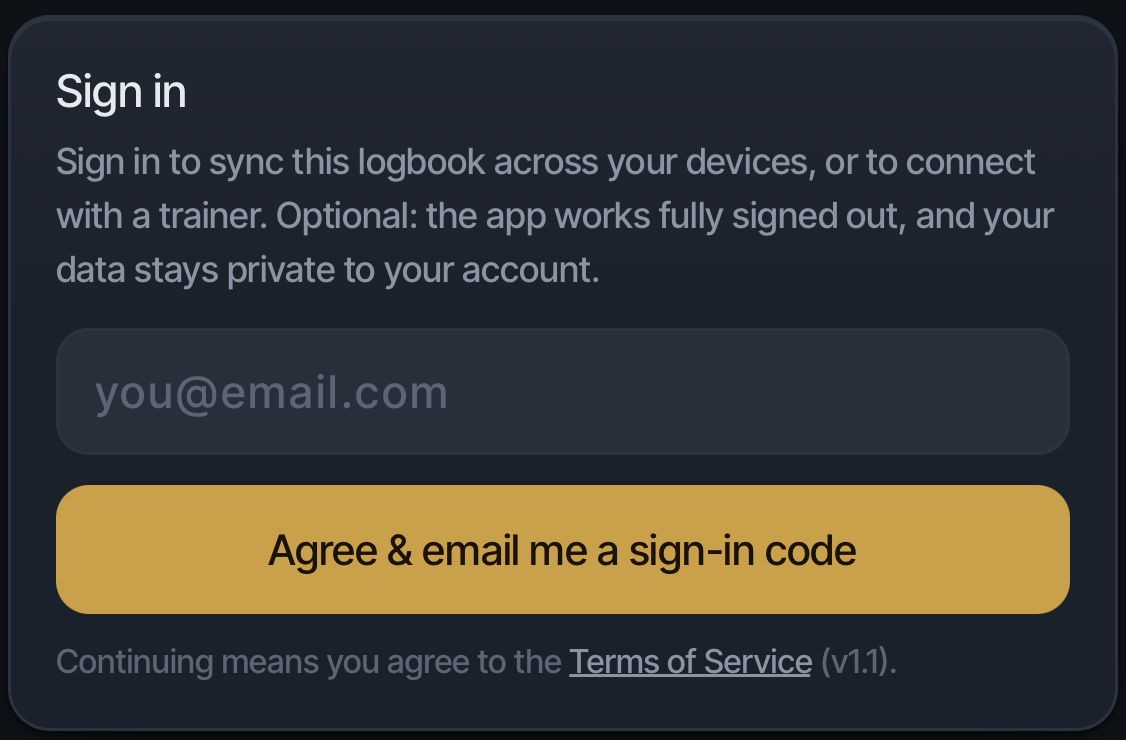
Delta emails you a sign-in code. There is no password.
A code from a trainer or creator #
A code from someone who shares programs can come with free months. Enter it at first launch or on the plan screen. Delta then asks what they may see while it lasts: Adherence (sessions logged against the schedule), Progression (strength trend on your lifts), and Body composition, which is off by default. Choose Enable sharing & continue or Continue without sharing; either way the free months are yours. Change your choice any time in Settings, then Sharing, with Share my progress with … and the three switches under it.
Connect Apple Health #
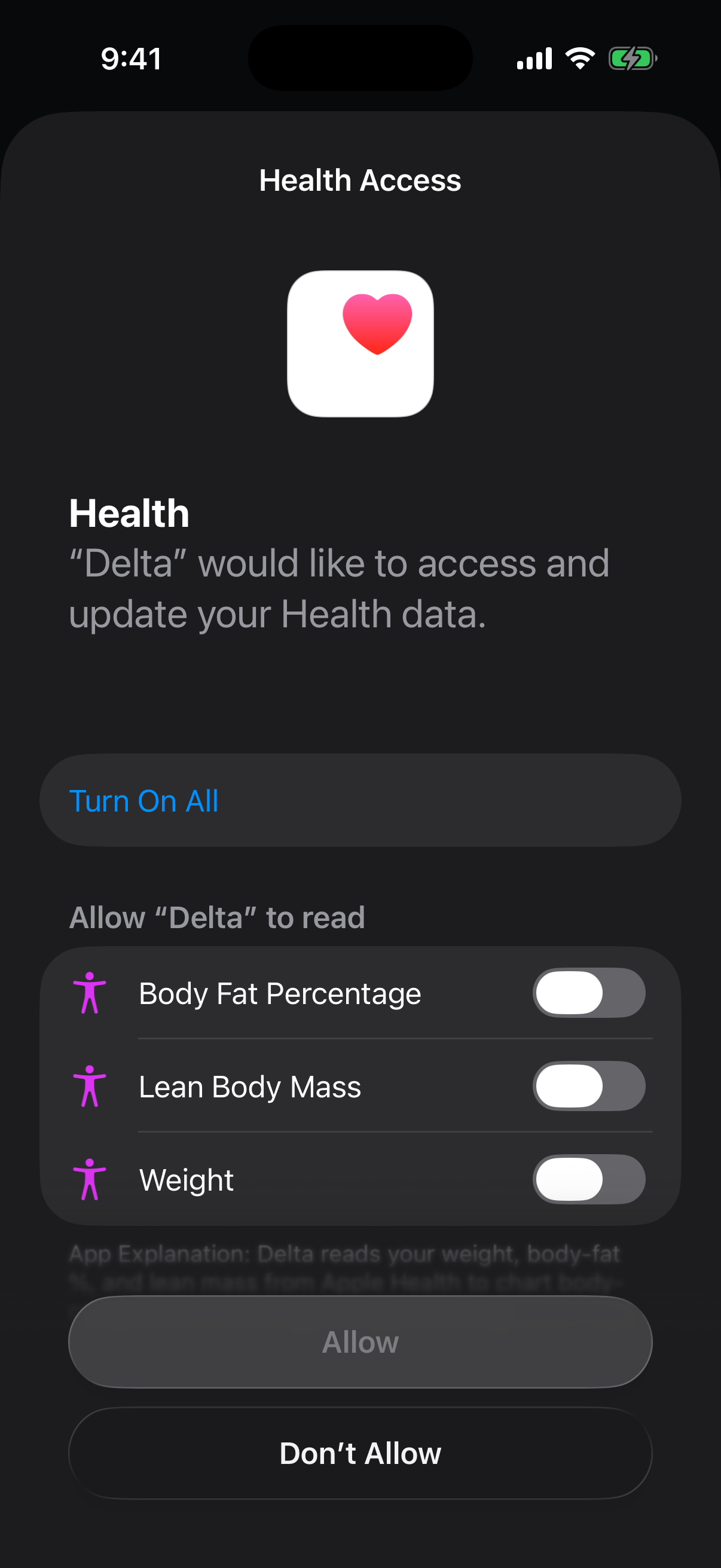
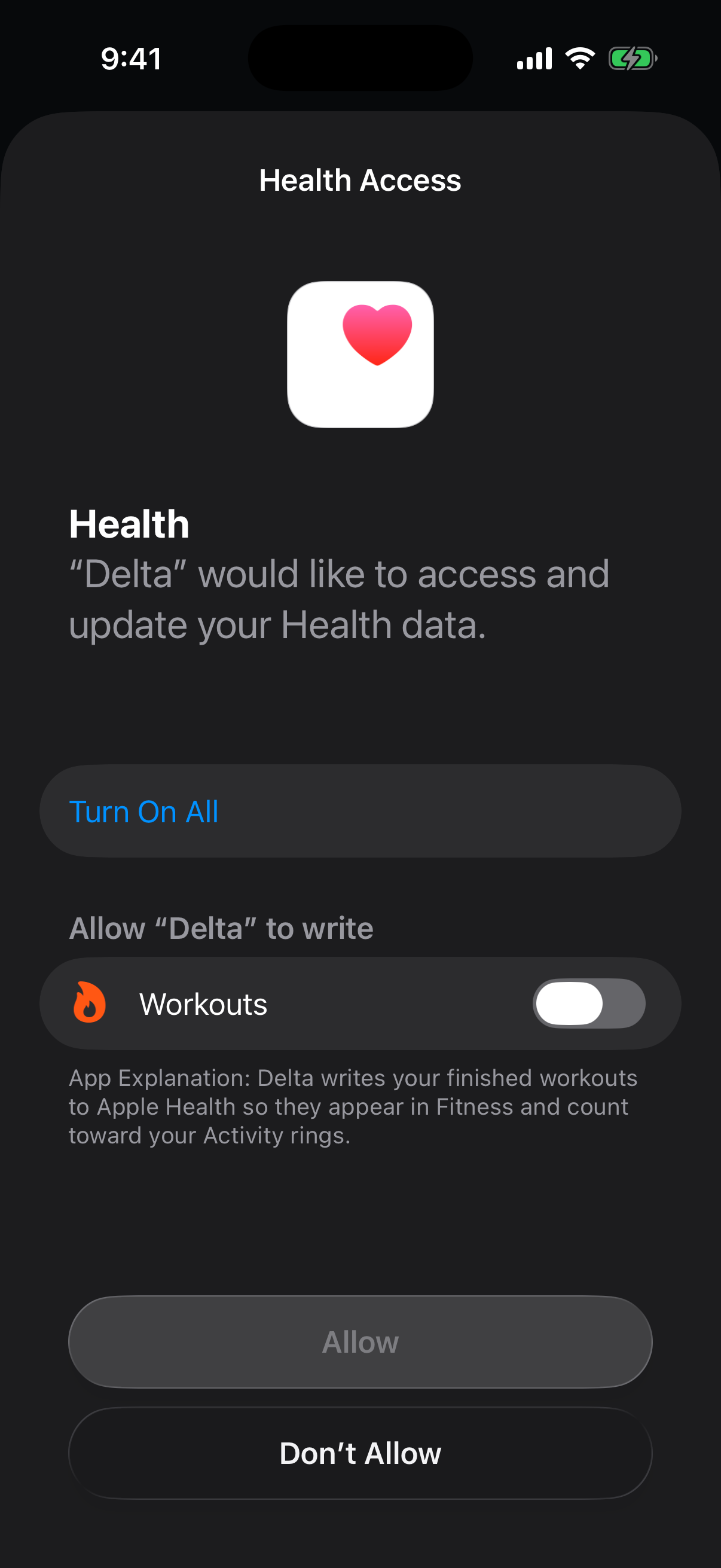
Delta reads recovery signals from Apple Health and writes your workouts back to it. What it reads for readiness: resting heart rate, sleep, heart rate variability, respiratory rate, and wrist temperature, used only for the score. What it reads for Body, when you sync there: weight, body fat, and lean body mass. What it writes: each saved session as a workout.
Declining is allowed. Without Health access the readiness score has fewer signals to read and says so on its card rather than guessing.
Install on Apple Watch #
Install from the phone, not the watch: open the Watch app on your iPhone, scroll to Available Apps, and tap Install next to Delta. Depending on your watch settings it may already have installed itself when you paired.
There is no setup on the watch. Once installed, it wakes on its own when you start a session on the phone.
Choose or build a program #
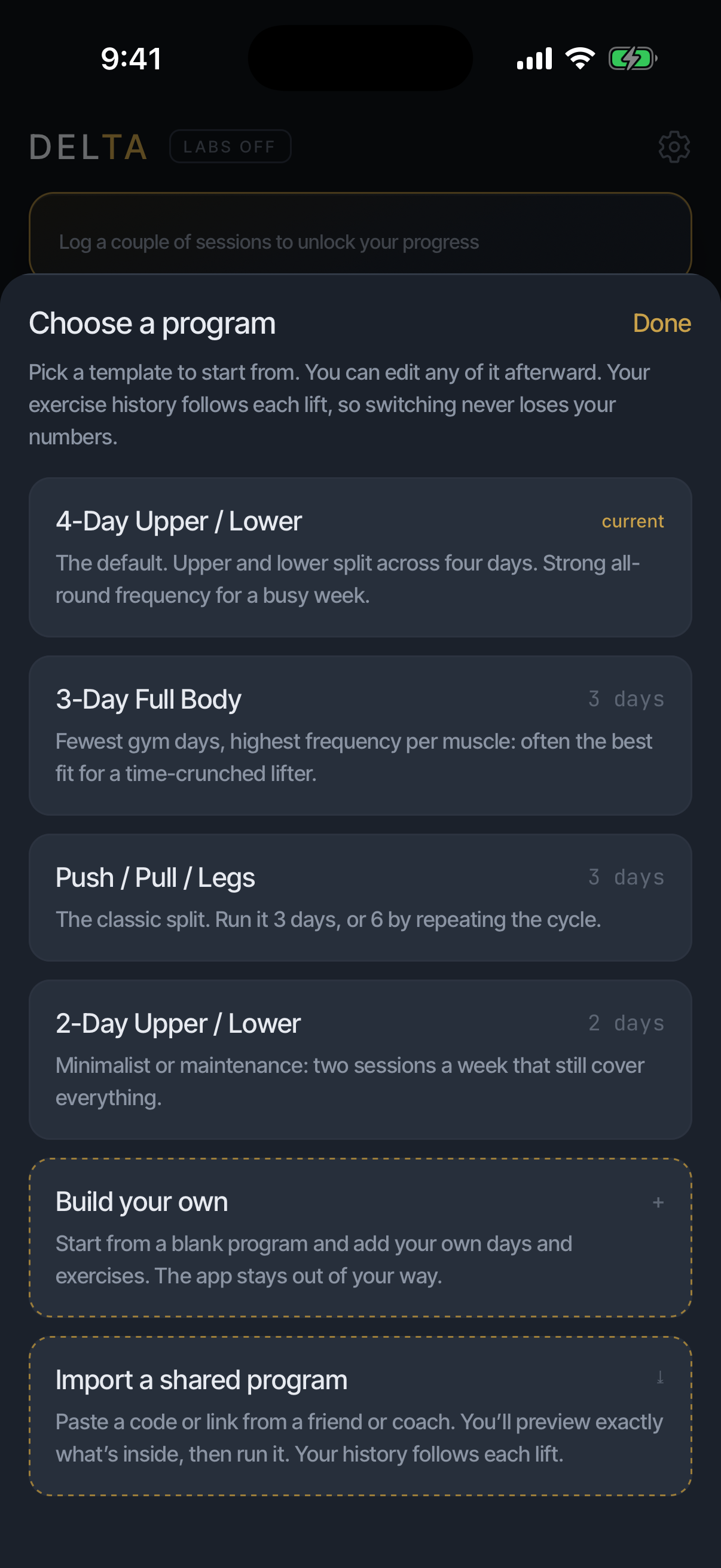
Delta starts you from a template. Pick one in Train, then Change on the program card. You can edit any of it afterward.
The templates: 4-Day Upper / Lower, an upper and lower split across four days with strong all-round frequency. 3-Day Full Body, the fewest gym days with the highest frequency per muscle. Push / Pull / Legs, run it 3 days, or 6 by repeating the cycle. 2-Day Upper / Lower, minimalist or maintenance, two sessions a week. Building your own from scratch is covered in Part 5.
Link a trainer (optional) #
If a trainer gave you a code, enter it in Settings, then Trainer. Before anything is shared you see a preview of exactly what the trainer will get. Nothing is shared until you accept. Part 10 covers the full arrangement, including what a trainer can never see.
Fill in a Coach profile (optional) #
The profile is what you would tell a human trainer: age, training history, anything the advice should account for. It shapes the Coach's advice and nothing else. It never enters a calculation, a score, or a chart.
What Day One looks like #
A signed-out install is a three-tab app: Train, Progress, and Body. Parts of it are empty on purpose, and the empty states say so rather than pretending.
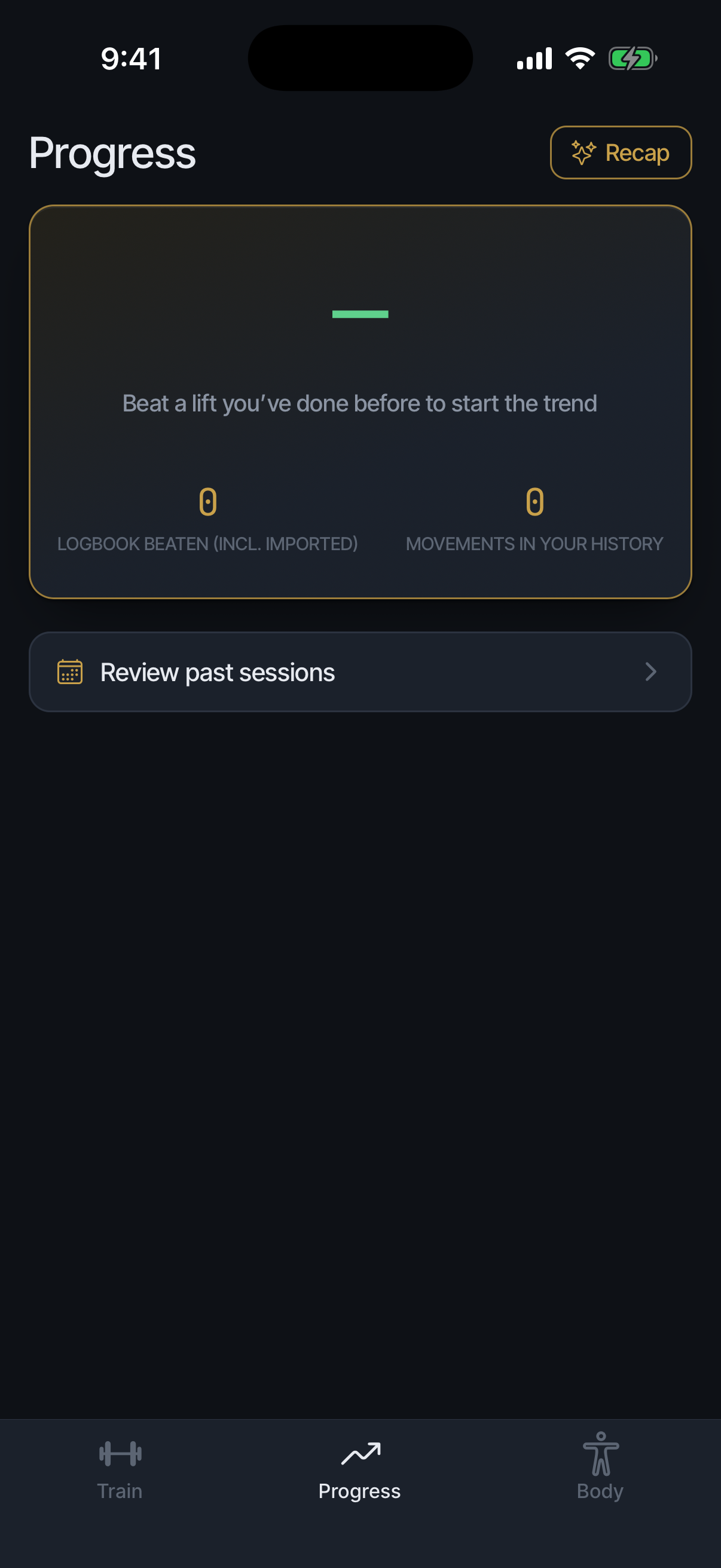
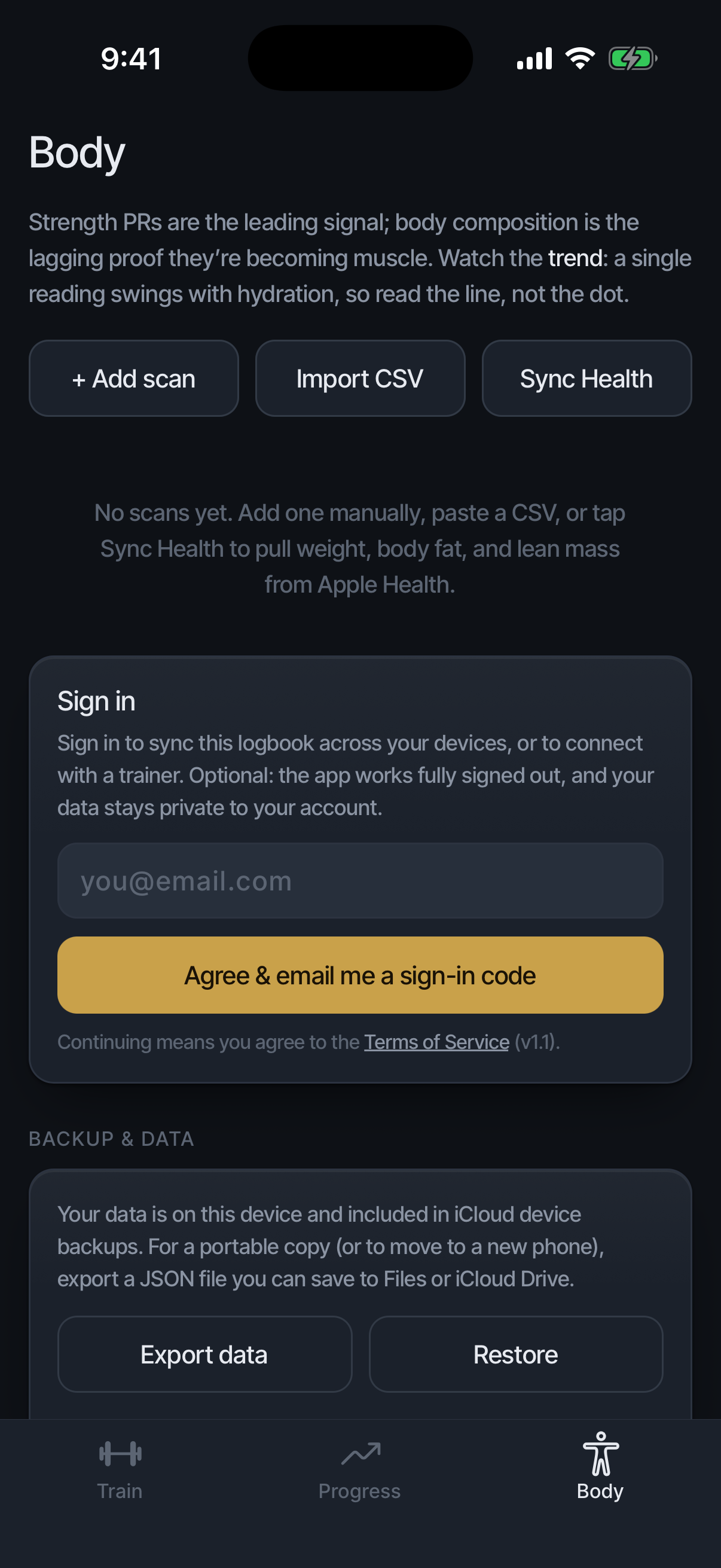
Train has your program loaded and the first session ready; nothing else, because nothing else has happened. Progress has nothing to beat yet: Delta measures you against your own proven best, and you have not proven one. The consistency panel names what it will show and builds as you log. Body waits for a first scan, an import, or Health sync.
Readiness shows its calibration state, counting nights toward the 14-night goal, with a first score at 7. Nothing here is broken; it is waiting for data only you can generate.
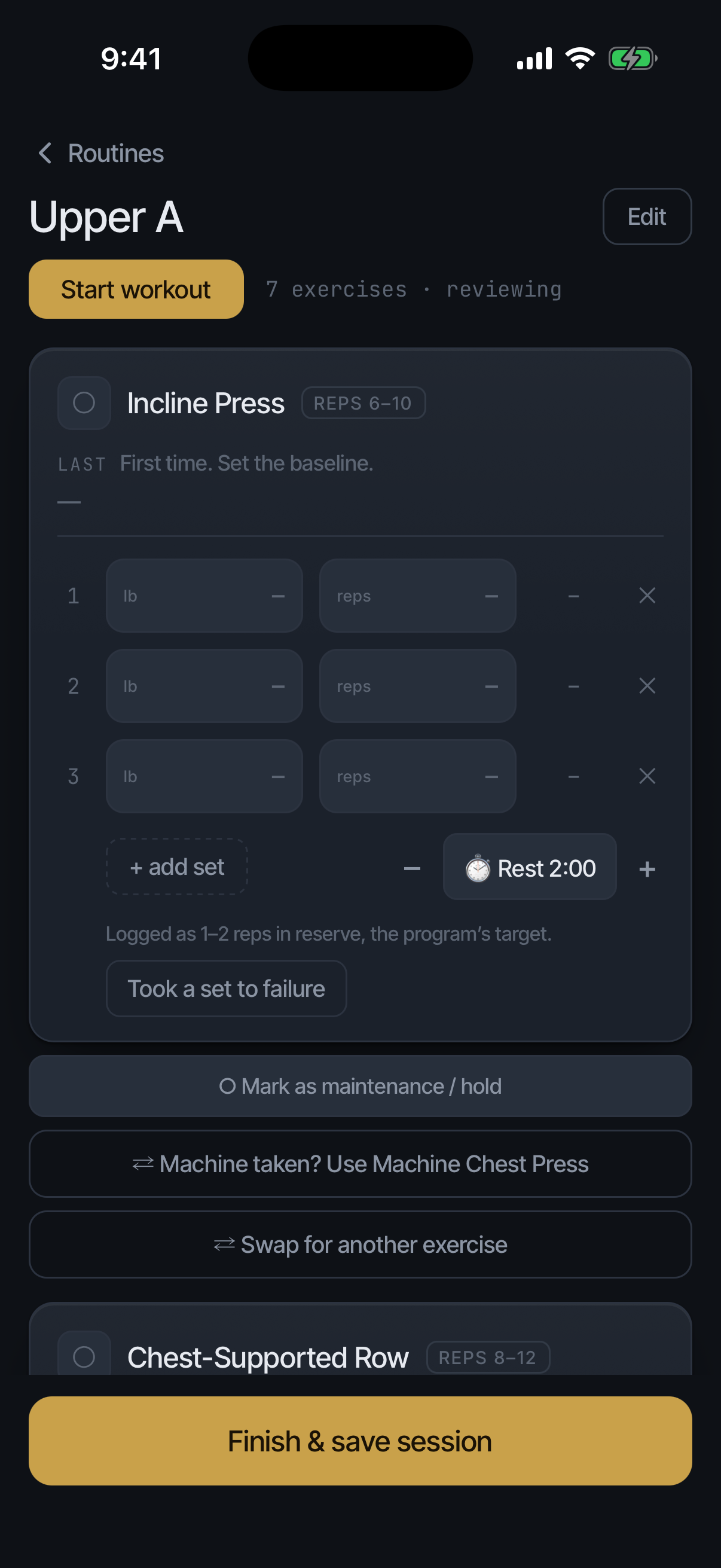
First-time cards carry one of two lines. Straight-set and drop-set exercises read "First time. Set the baseline." Myo-rep exercises read "First time. Set the baseline total." The difference is the measure: a myo-rep lift is judged on the total across its activation and mini-sets, not on a single set. The default first session, Upper A, contains both kinds, so you meet both lines on Day One.
Coach is not one of the three tabs, and its absence has nothing to do with time or data: Coach visibility is an entitlement read from the server, and a signed-out install cannot have one. It appears once you are signed in with an active trial or a Plus subscription; on a trainer's complimentary days the tab shows and says Coach comes with Plus. Never signing in means three tabs on day thirty, too.
When the numbers start to mean something #
After your first session on a lift, that session becomes the line to beat. A lift joins the headline average at its second session, and the headline needs three such lifts. On the default 4-Day Upper / Lower no lift repeats until the cycle does, so the Progress tab starts reading as a trend at about session five, not session two. Readiness shows two different numbers on purpose: a score first appears after 7 nights of Health data, while the on-screen calibration goal is 14 nights, the point where the baseline is considered settled. Seeing 7 in one place and 14 on the other means both are working as designed.
Training
The anatomy of a session #
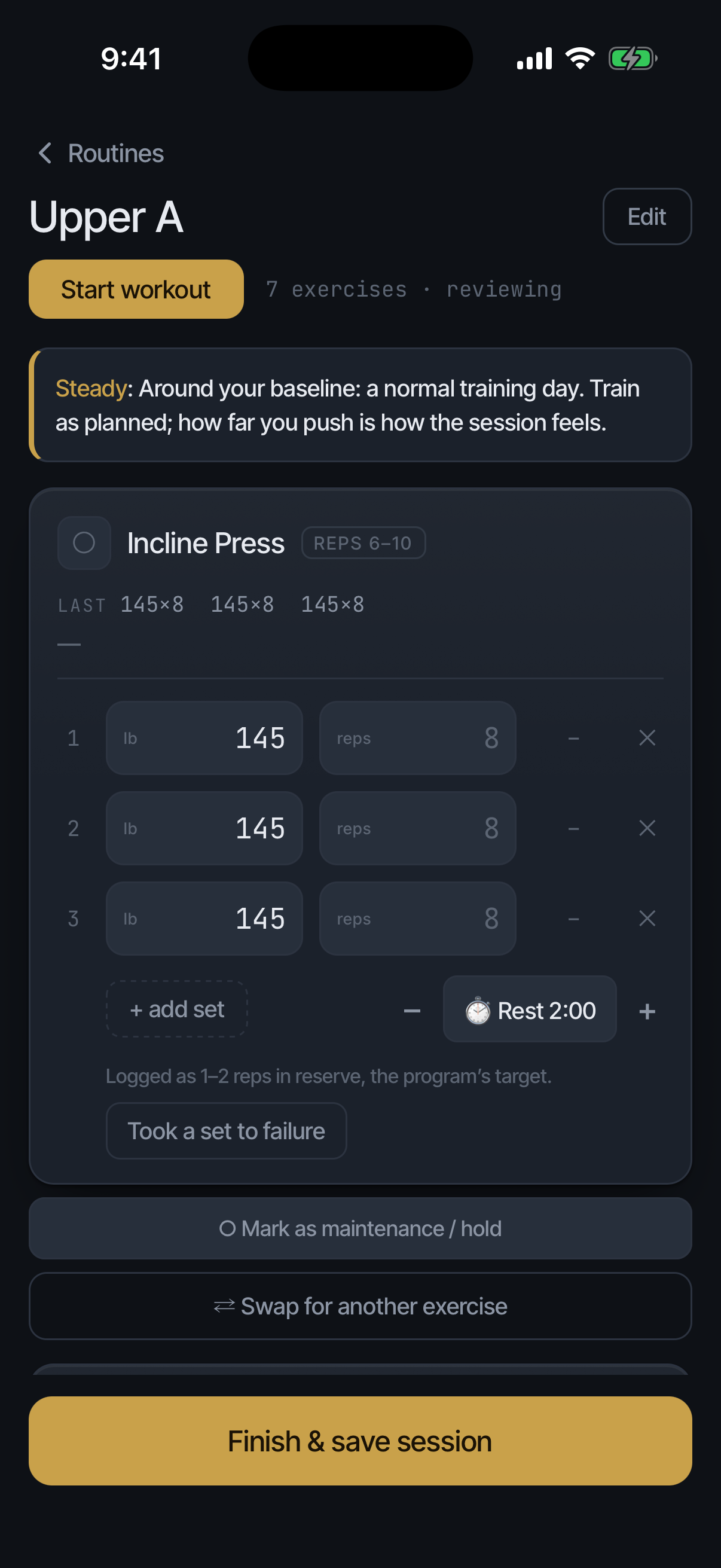
Open Train and tap the day marked NEXT UP. Each exercise card shows what you did last time, set by set, so the target is always in view. Work top to bottom; to reorder, tap Edit, then press and hold a row or use its arrows.
Start, leave, and come back #
Opening a day is reviewing it: the cards show, the clock does not run. Tap Start workout, or log a set, and the session starts. The time shown is time training; a long break away from the phone is not counted.
You can leave mid-session. Everything typed so far is kept, and Train shows Session in progress with Resume and Discard until you finish it. Discard workout at the bottom of the day throws today away; it asks first, because any logged sets go with it.
Log a set #
There is nothing to save: the set counts as soon as the reps are typed, and the rest timer starts if it is on.
Delta scores the set against last time on the spot: same load for more reps, or more load at comparable reps, counts as beating the logbook.
The autoregulation band #
Every live session carries a colored stripe with a line about how to approach the day: at a low readiness it suggests going easier, at a high one it reads as a good day to push. It uses your baseline-relative readiness and shows a band only when a real, calibrated score exists; until then the stripe sits greyed with a placeholder line. Every new user sees the placeholder first, because readiness needs about a week of nights.
It is a suggestion about effort, not a change to the session. The weights and reps it shows you never adjust themselves.
The rest timer #
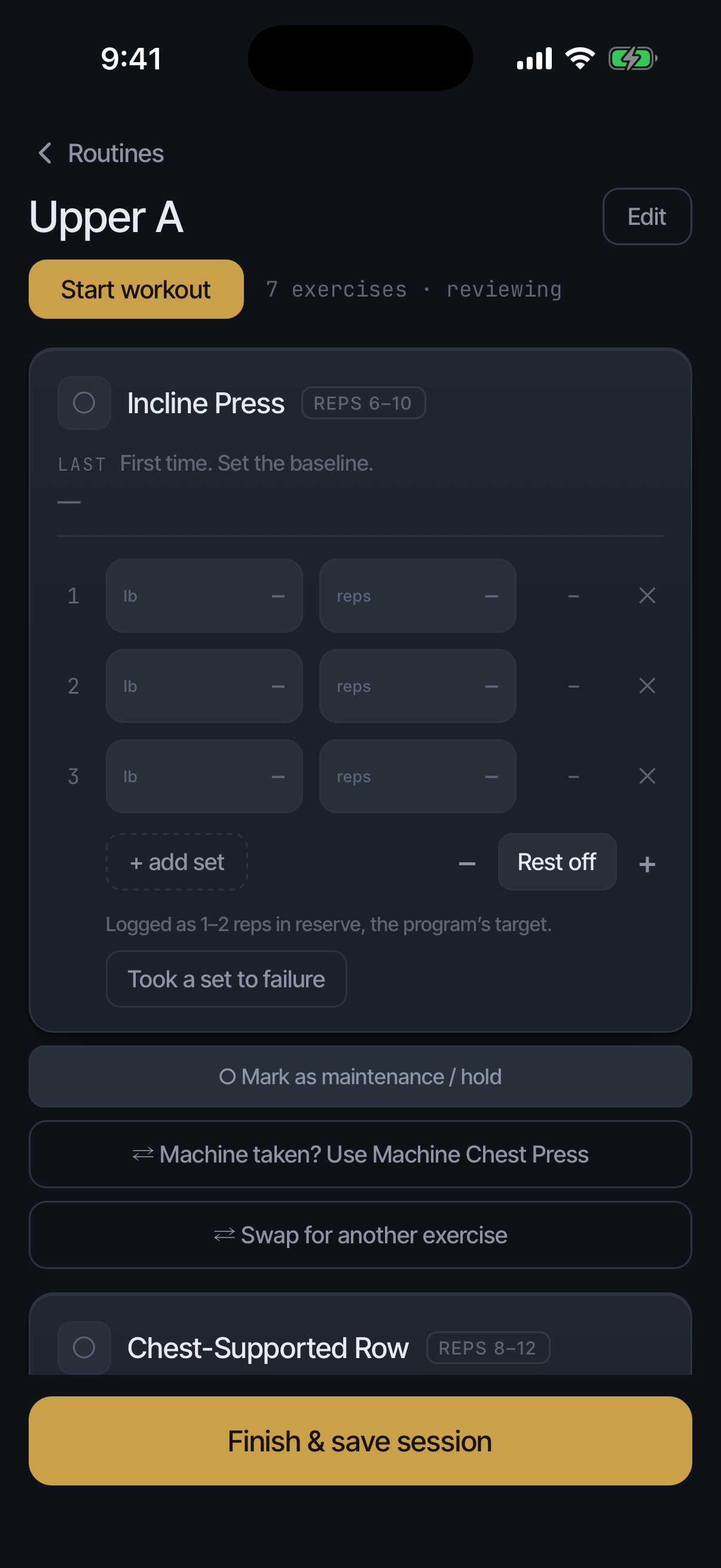
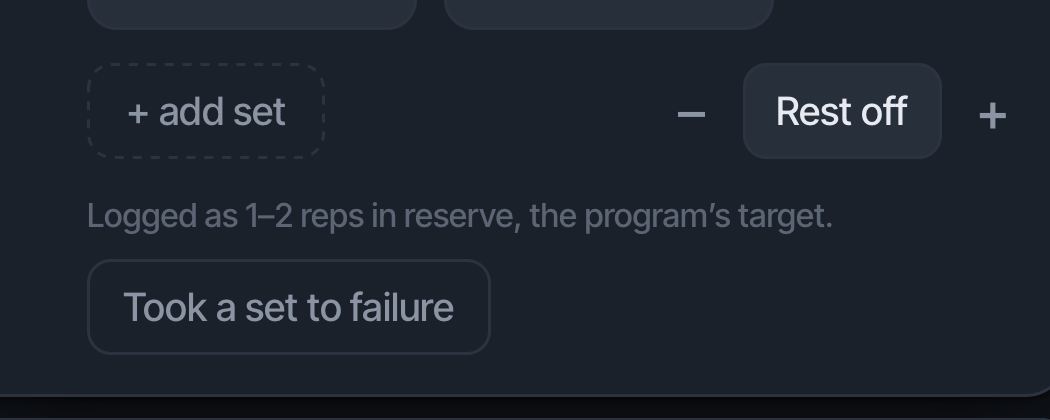
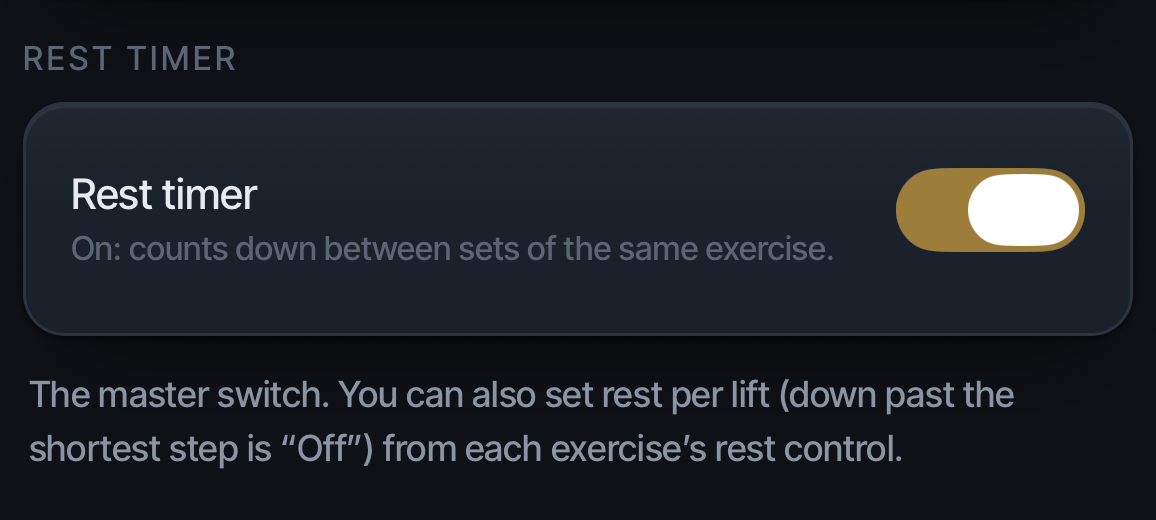
On: counts down between sets and notifies you at zero. Set the default in Settings. You can also set rest per lift from each exercise's rest control; stepping down past the shortest step is "Off".
The timer starts when a set's reps are typed, and only between sets of the same lift: never after its last set, and never for myo-reps, whose rests are part of the method. Tap ⏱ on a card to start a rest now. The bar shows Rest · time with +30 and Skip; Rest complete buzzes, and notifies you if you have left the app. Drop sets get a short rest between drops.
Myo-reps #
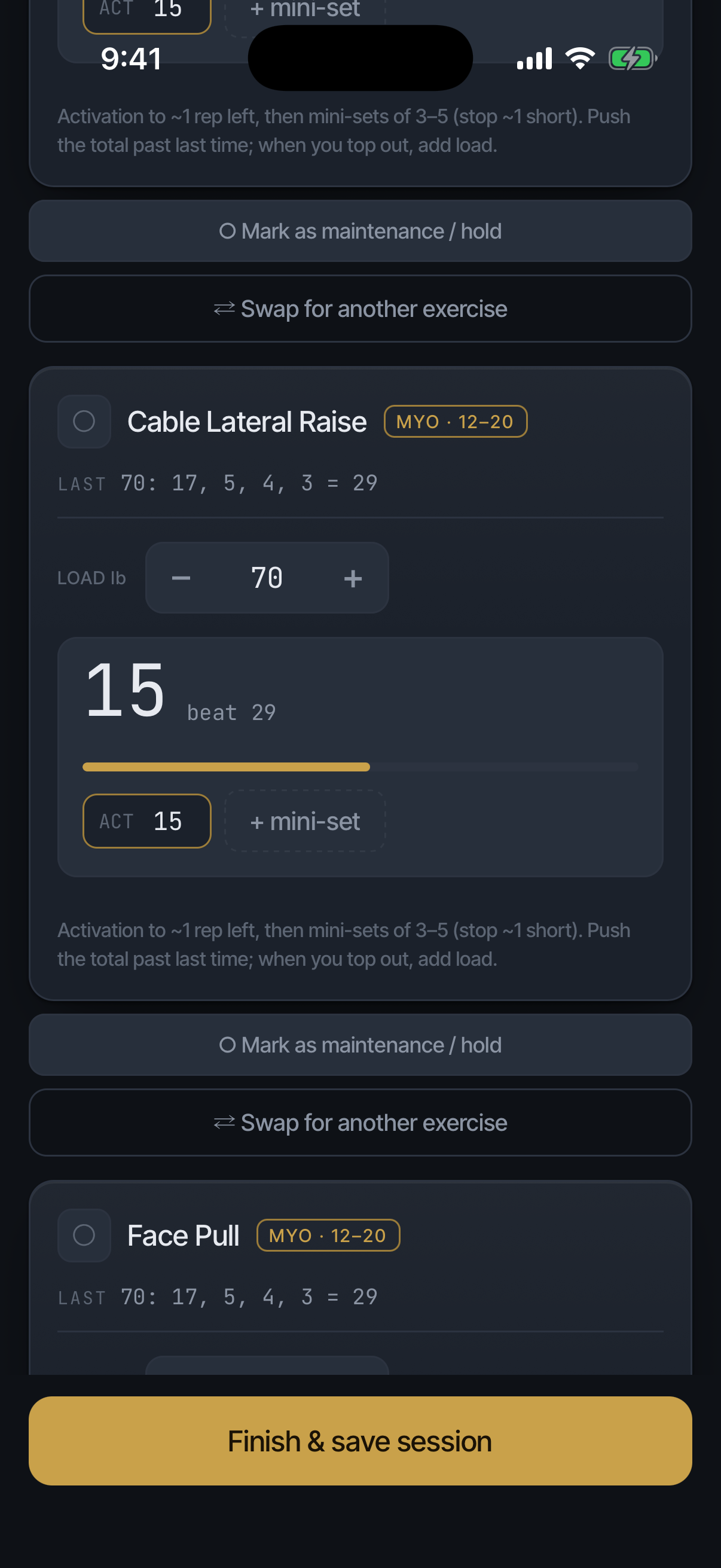
A myo-rep exercise starts with an activation set taken close to failure, then short mini-sets on minimal rest. Log the activation set first; Delta then counts each mini-set. When you hit the top of the mini-set target across the block, add load next session. The card walks the sequence so you never track it in your head.
The other methods #
Straight sets: fixed sets at one working load. Top set with back-off: one heaviest set, then lighter volume work. Drop sets: strip load and continue; a short rest runs between drops unless the lift’s rest is off. Rest-pause: one load, brief pauses, until the rep total is done. Set the method per exercise in the day editor (Part 5); the session card adapts to whichever method the lift uses.
Backup exercises and mid-session swaps #
Everything on this screen changes today’s workout. Nothing here rewrites your program unless the finish card asks and you say yes.
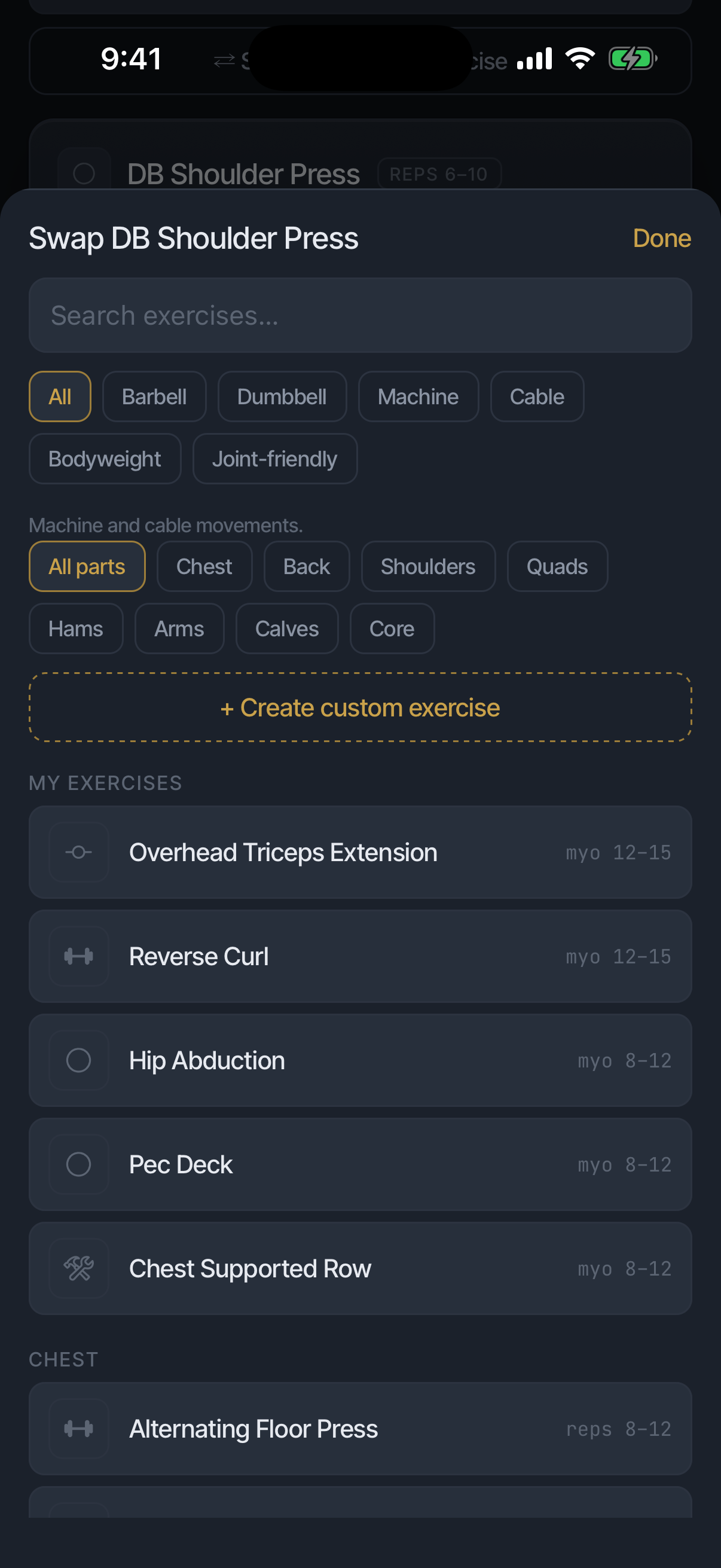
On each exercise card. Machine taken? Use [backup] switches to the lift’s backup for today. Swap for another exercise opens the full catalogue and puts your pick in that slot for today; if you create a new exercise from there, it is added to today’s workout. Hold this lift today keeps the lift at maintenance for this session. Log more or fewer sets than the day prescribes and Delta simply records what you did.
At the top of the day. Deload day seeds every lift from your last normal session at the same weight with fewer sets, for this session only. Edit opens the day editor while you train: add an exercise, remove one, reorder, change a lift’s method, set rest, set a backup. Everything you do in Edit changes the program immediately and stays changed. Changing a lift from myo-reps to straight sets mid-session cannot carry the minis you have already logged, so finish that lift first.
Adding a catalogue exercise for today only has no button of its own. From Swap for another exercise, open Create custom exercise, type the lift’s name, and tap Did you mean… to add the existing entry to today’s workout without touching the program.
History stays with each lift, so a swap never costs you a logbook.
More in Edit. Save today’s exercises as [day] appears once you have swapped something in, and writes today's lineup to the day without waiting for the finish card. Reset this day to default returns a program day to its template; a day you built by hand has no default. In the backup picker, Remove backup clears one. Delta warns before an edit that costs something: a lift the day already has, a lift with logged sessions, or replacing a custom lift that exists nowhere else.
Maintenance and hold #
Tap Hold this lift today on the card when the goal is keeping it, not moving it: an injury you are training around, or a lift you are parking this session. A held lift is not scored against its best and does not count against your progress ratio. The hold is for this session only and clears when you save; hold it again next time if you need to.
Log an off-program session #
From Train, start an off-program session and add exercises as you go. It saves like any other session and counts as on-plan, not a miss.
Finish and save #
Tap Finish & save session. Delta saves the session, writes the workout to Apple Health if connected, and confirms with a line naming the time and any PRs. With Coach insights on, it then opens the session’s page, where Coach’s read appears: what beat the logbook, what matched, any PRs. With insights off, you return to Train and the page waits in History. Your first ever session lands on a baseline screen instead, because there is nothing to beat yet.
If today ran differently from the program, with more or fewer sets on a lift, a backup used in place of its primary, or an exercise swapped in or added, one card asks Make this permanent? and lists each change. Make permanent changes that day of your program to match today, once, and your trainer can see what changed. Just today keeps the program as it was. Anything you didn’t train today stays in the day either way.
Before saving, Delta may ask once. This saves N exercises when some cards were left empty: Keep going or Finish & save. Check one weight before saving when a number looks like a slip: Let me fix it or Save as typed. With nothing logged at all there is nothing to save, and Delta says so.
Start a session #
Sessions start on the phone. Open the day there and the watch wakes as the logger on its own; until then the watch idles with “Start a session on your phone.” One session, two surfaces.
Log a set on the watch #
When the watch and phone disagree #
A set logged on the watch queues and lands on the phone when they reconnect.
Programs
The templates #
Four starting points: 4-Day Upper / Lower, 3-Day Full Body, Push / Pull / Legs, and 2-Day Upper / Lower. Pick one to start from; you can edit any of it afterward.
The day list on Train #
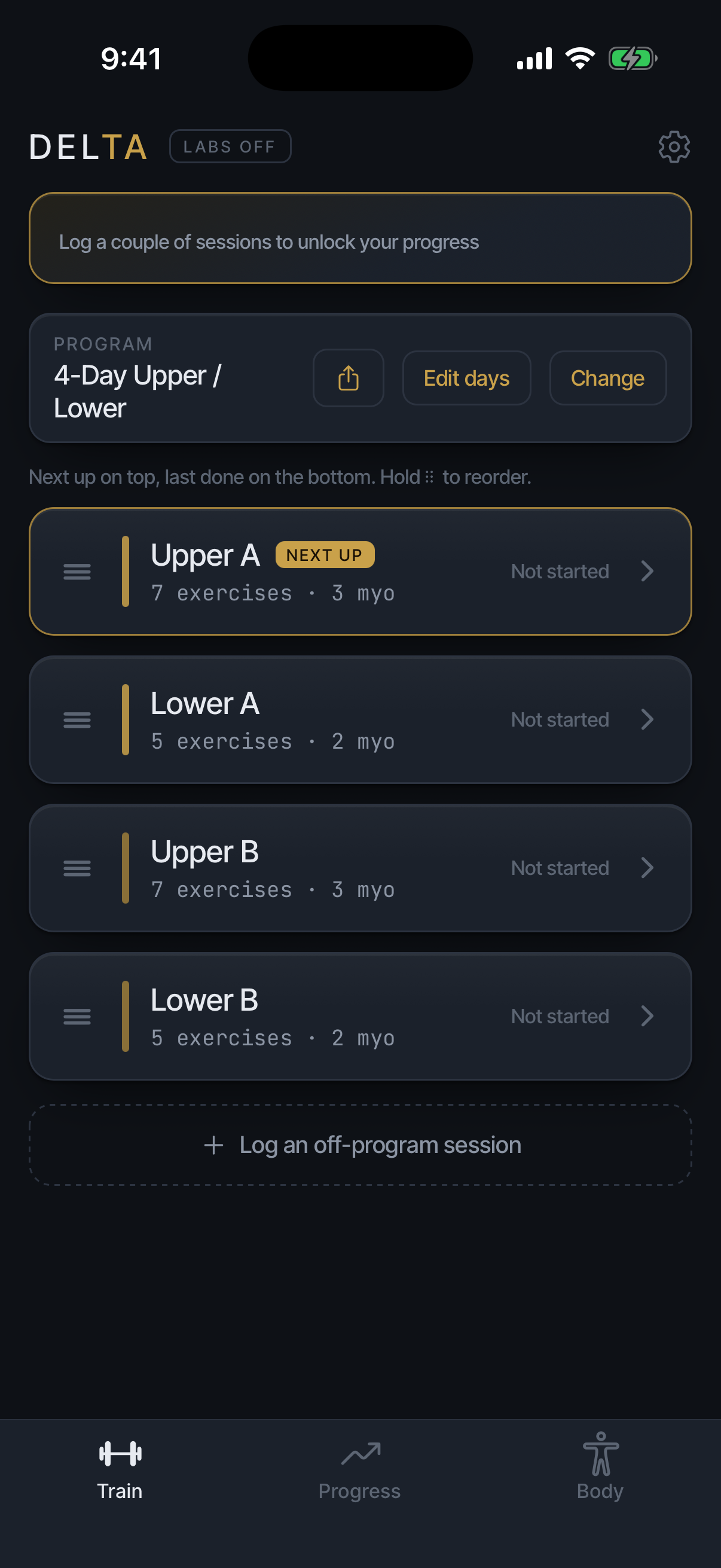
Train lists your program's days with the next one on top, marked NEXT UP, and the date each was last done. When you finish a day it moves to the bottom, so the next one is always on top; an off-program session never moves the list.
Hold ⠿ on a day to drag it into a different order. Edit days opens the list for changes: the pencil renames a day, × removes it, Add day adds one. Done closes it.
Build your own #
From the program card, choose Change, then Build your own. Delta opens the day editor on an empty program: add days, then fill each day. The program card reads Custom program.
Edit a day #
Open Edit days on the program card. Rename the day, reorder exercises by dragging, set a method per exercise, set rest per lift, and set a backup per lift. All of it lives in one editor.
The exercise picker #
Add an exercise from the catalogue. Filter by equipment or body part, or switch on the joint-friendly filter for lifts that train around what the years left behind. The filter selects machine and cable movements; the chip states its license beneath the filter row: "Machine and cable movements." Anything you cannot find, create as a custom exercise: name, muscle, rep range, equipment.
Switch programs #
Switching programs never loses your numbers. Per-lift history follows the lift, not the program: switch and every number comes with you.
Import a shared program #
A shared program arrives as a code or link. Delta shows the full contents before anything is added. An incoming exercise whose name exactly matches one in your catalogue maps to it on its own; one that merely resembles yours shows up top for a decision.
Share a program #
Tap the share icon on the program card. Give the program a name and a note, set a price or leave it free, check the preview, and tap Share program. Delta gives you a code and a link; anyone with Delta can import it (see Import a shared program). Your logbook is not part of what you share; only the program is.
What the score means #
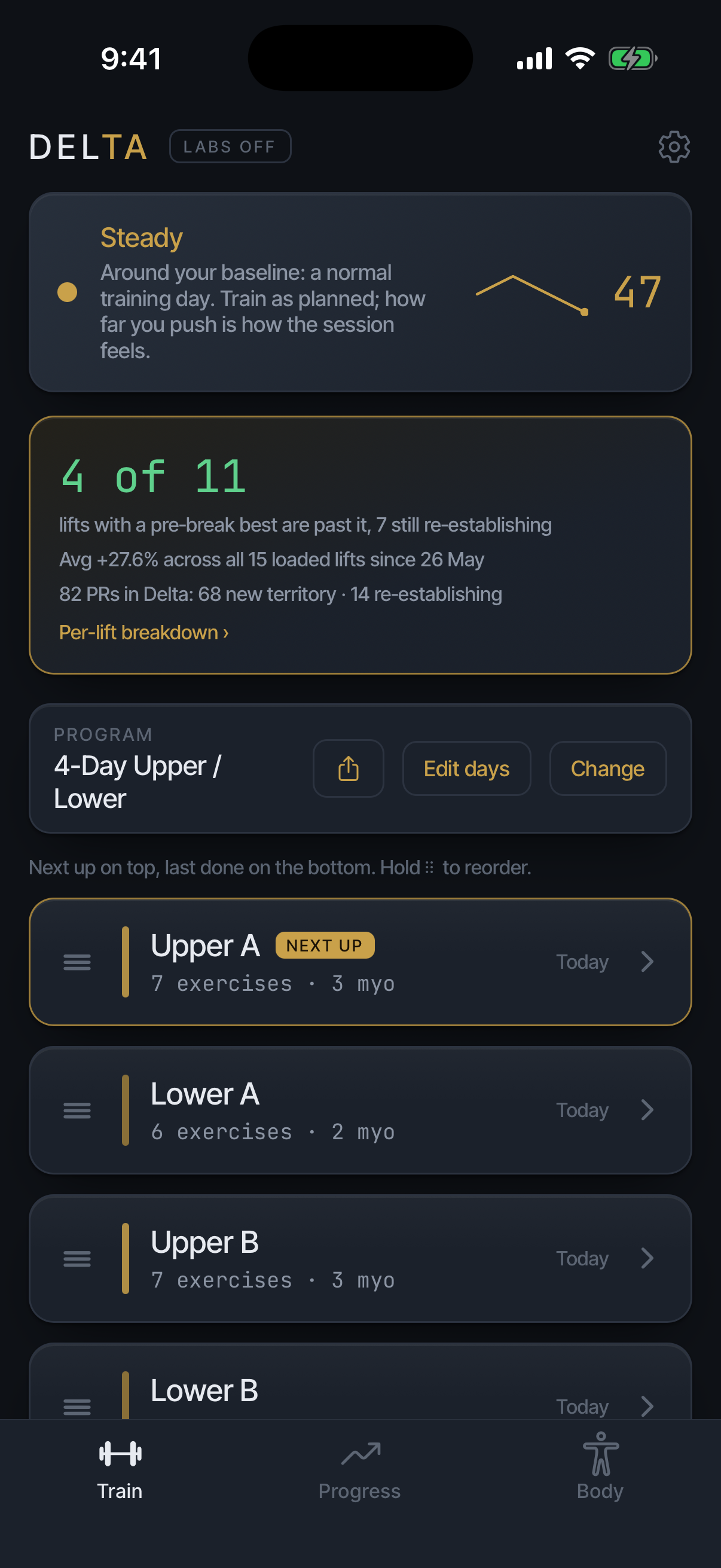
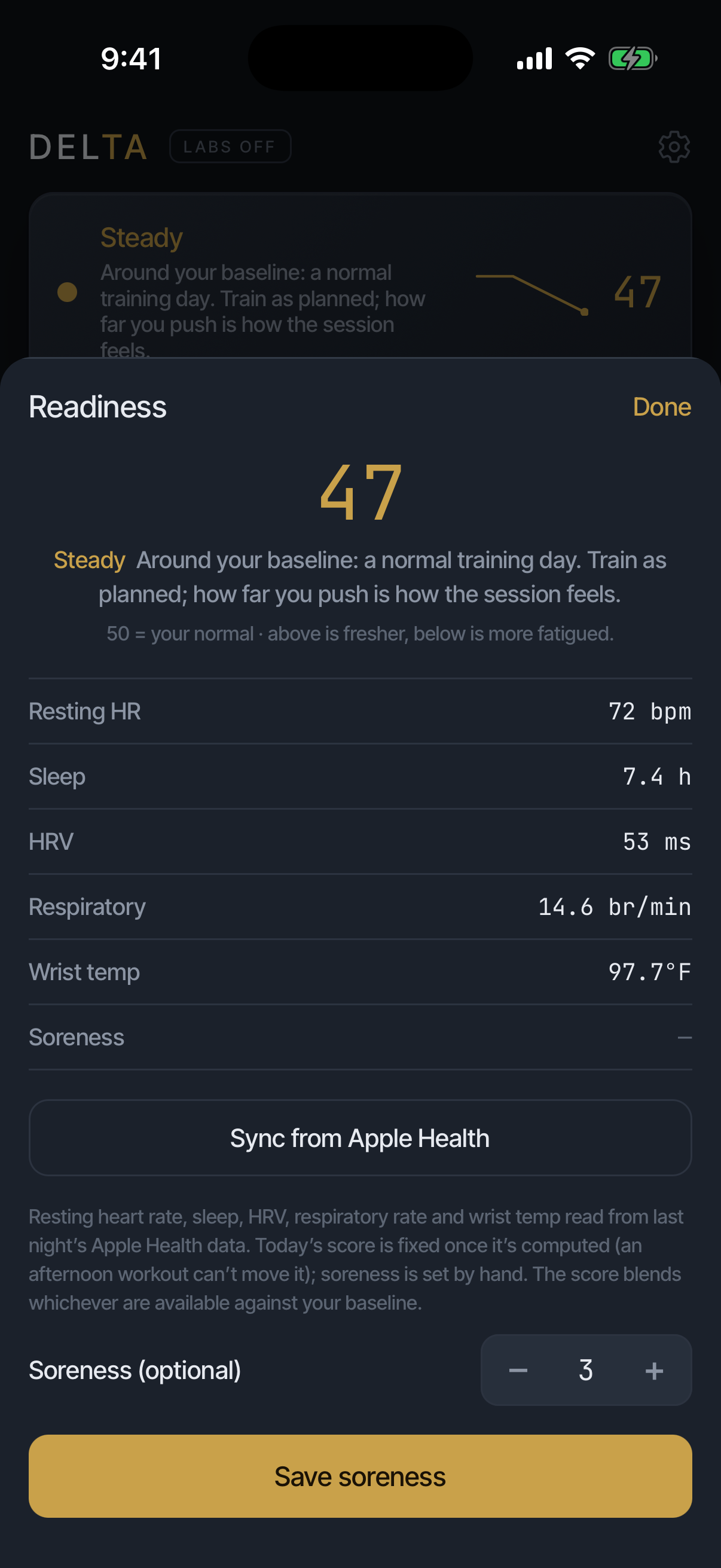
50 is your normal, computed from your own baseline, not a universal midpoint. Above it, you are better recovered than usual; below it, worse. A 47 reads "Steady": around your baseline, a normal training day.
The five signals #
In the app's order: resting heart rate, sleep, heart rate variability, respiratory rate, and wrist temperature. All five read from last night's Apple Health data. Missing signals reduce confidence; Delta says so rather than guessing.
Soreness sits below them on the readiness sheet as a sixth input, asked for rather than read. The next section covers it.
Why it is fixed once computed #
Today's score is computed once and fixed. An afternoon workout cannot retroactively move the morning's score, so the number you planned against at 7am is still the number at 7pm.
Soreness is entered by hand #
Soreness is not one of the five Health signals. No sensor measures it honestly, so Delta asks instead of inferring: it sits on the readiness sheet as a sixth input you enter from the readiness card. Skipping is fine; the sheet just shows no soreness row that day.
What to do with a low score #
Concretely: keep the session, cut one working set per lift, and hold loads instead of chasing a PR. Do not skip. A PR at a readiness of 47 is real strength showing up; a low score is a dial for volume, not a verdict on the day.
The deload nudge #
A small card near the top of Train that appears only when three things are true at once: your readiness has been low or falling over the last week or two, you have logged at least three sessions, and you have not set a personal record recently. In the three weeks after a training break it says something different, and only when readiness is genuinely low: ease in rather than chase old numbers.
Most users see it rarely, by design. Read it and decide: tapping it changes nothing in your program, and there is no dismiss or snooze. A lighter week taken on its advice counts as on-plan, not a miss.
Progress
Beating the logbook #
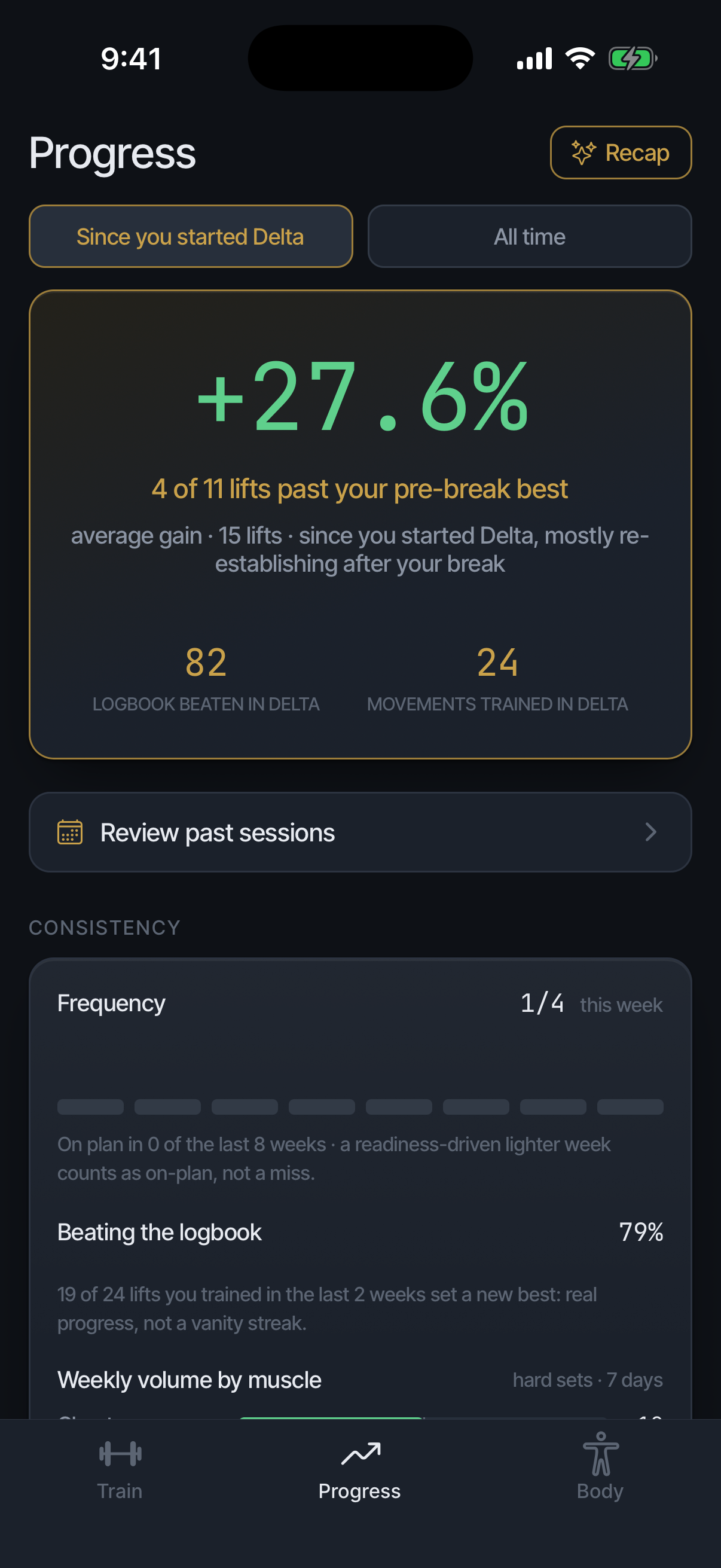
The real signal is beating what you already proved: more reps at the same load, or more load at comparable reps. A lift counts as progress only when it passes your proven best, never when a streak or a total merely grows.
Past your best vs still re-establishing #
After a break, each lift with a pre-break best shows as either past it or still re-establishing, side by side, never averaged into one flattering number. "4 of 11" means exactly that.
The revelations card #
A card near the top of Progress that renders only when something true and recent happened. Two kinds exist: a lift coming back to its pre-break best within the last week, or a prediction the app made about a heavy session checked against the next morning's readiness. When there is nothing to say, it says nothing; a quiet Progress tab means no news, not a broken card.
Nothing is required of you. It shows only your own numbers, never a comparison with anyone else, and its text can be shared.
The consistency panel #
An at-a-glance mirror above the lift lists showing three things: sessions this week against your program's target, with a bar per week going back; how often you beat your previous best on lifts trained recently (held lifts excluded); and hard sets per muscle this week.
It is a mirror, not an instruction; nothing in it tells you to change anything. With no history it does not disappear: it names the three things it will show and builds as you log.
Estimated 1RM #
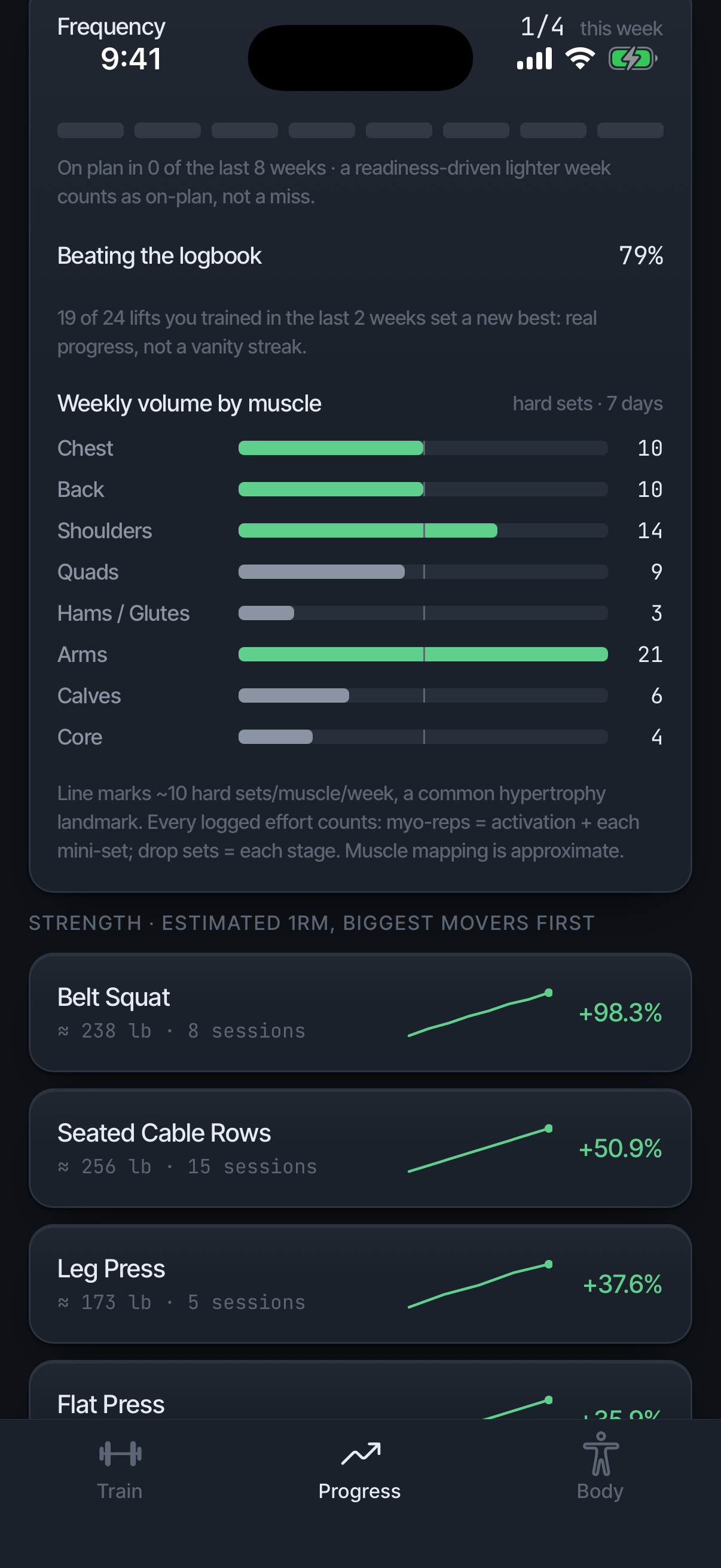
The e1RM chart estimates one-rep strength from your working sets. Read the trend, not a single point; a grindy day bends the line without meaning anything. The Since you started Delta and All time chips at the top of Progress frame every number on the tab, this chart included; they appear once a session logged in Delta exists.
Weekly volume by muscle #
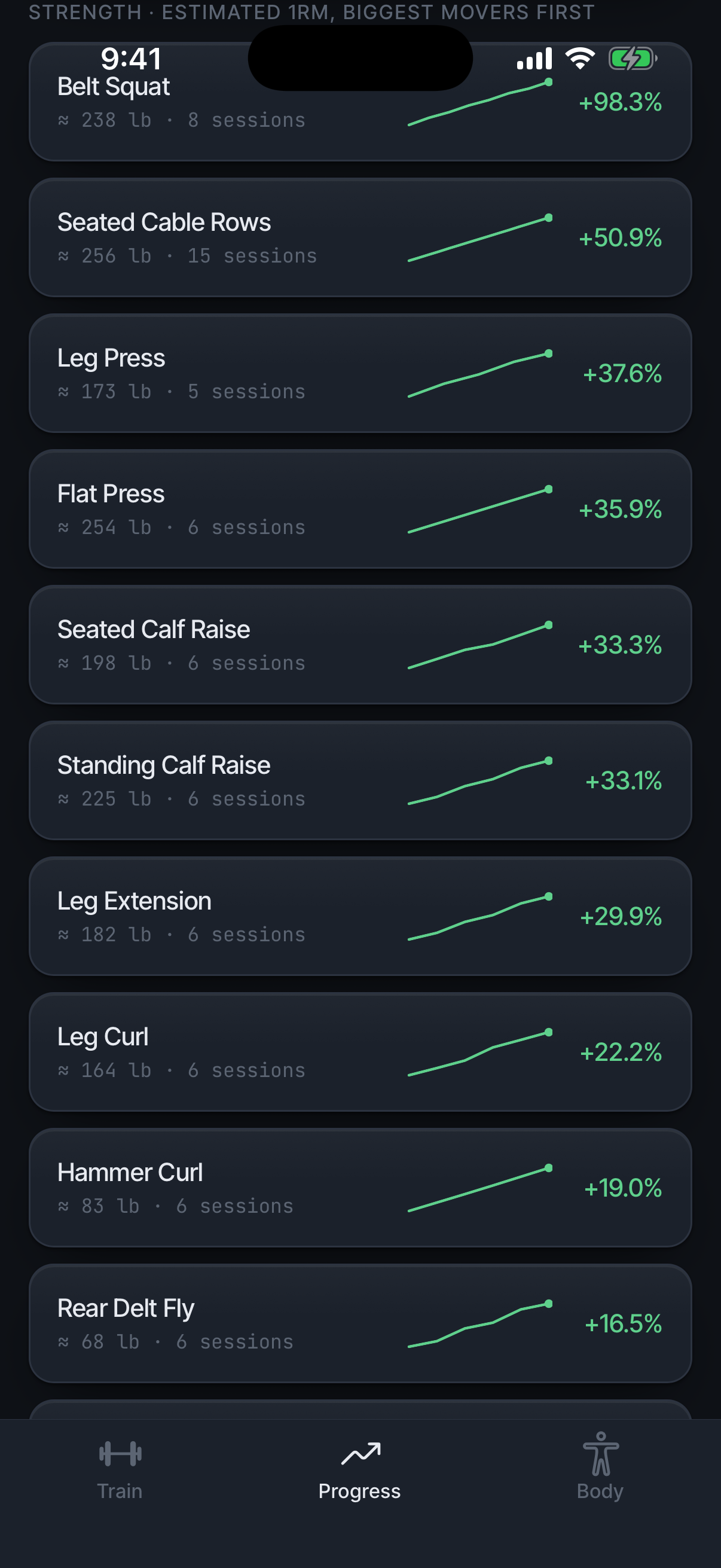
Hard sets per muscle per week, against a landmark line at roughly 10, a common hypertrophy landmark. Counting rules: a myo-rep block counts its activation set plus mini-sets as hard sets earned, and a drop set counts once per load drop. Isolation and myo totals are broken out separately.
PRs and new territory #
A PR is a load-and-reps combination you have never beaten. New territory is a load you have never handled at all. Both are called out in the session read and collected in Progress.
The Recap #
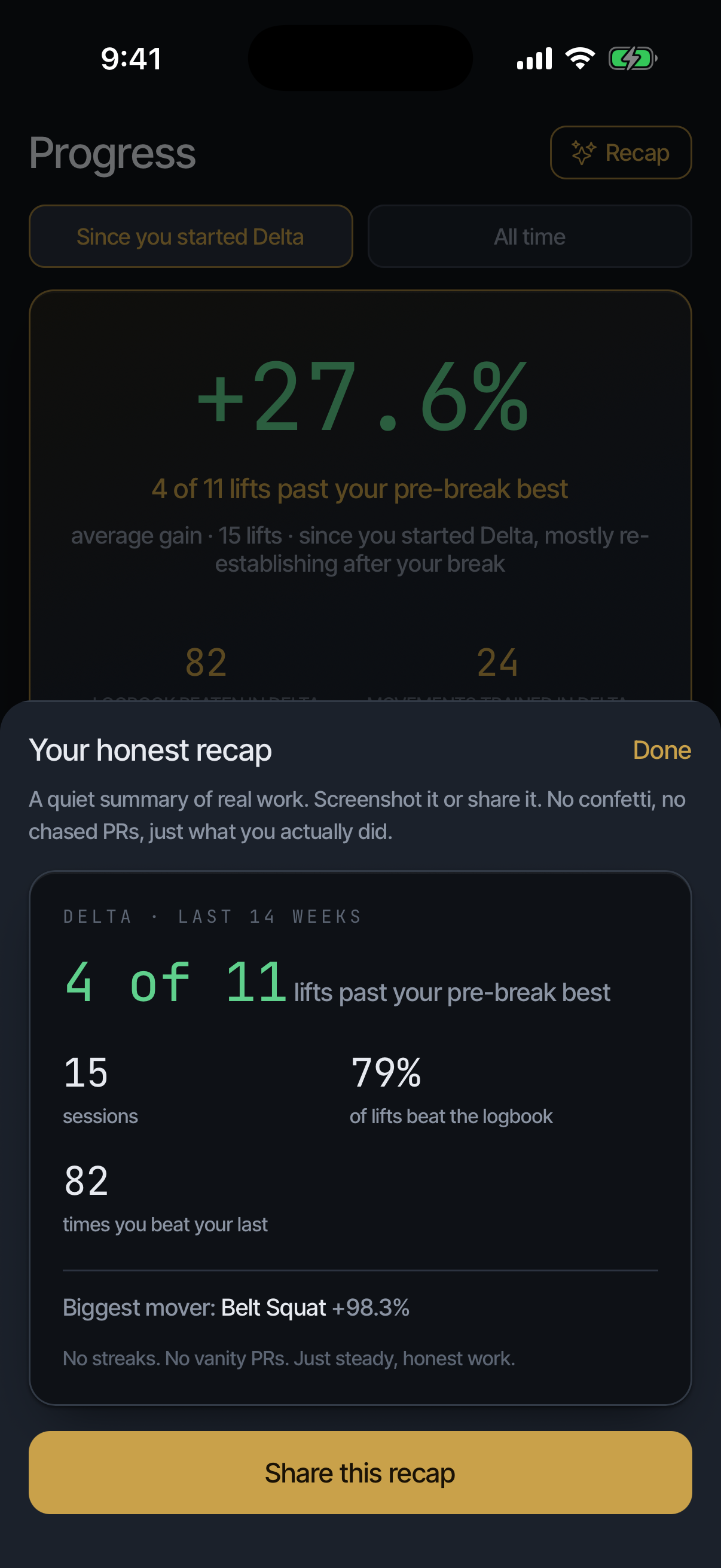
Eight weeks of real work in one card: sessions, the share of lifts past their best, the biggest mover. A quiet summary of real work. Screenshot it or share it from the card.
Session history #
Every saved session: date, exercises, duration, PRs. Tap any session to reopen the full set-by-set record. History is also editable after the fact from the session's edit screen.
A session's detail also shows the day's total weight moved with a vs your usual percentage: logged-work arithmetic, descriptive, never a target. "Usual" is a median of your recent sessions, a shorter window than the word suggests.
After an unusually heavy day, Delta stores a prediction and checks it against the next morning's readiness, reporting a miss as readily as a hit. The session note says Delta will check, not what tomorrow will be.
A session's page also shows vs previous [day], the change across the lifts you repeated, and Readiness at start, the score that governed it. Get Coach’s insights sends this session to Coach for a read; once one exists the button reads Ask Coach about this session.
Correct a session #
Open the session from History and tap Edit. Change moves it to another date; Remove takes an exercise out; sets can be edited, removed with ×, or added with + add set; + Add exercise adds one you forgot. Save corrections writes it back and re-scores any PRs the change affects. Cancel leaves the session as it was.
Delete this session removes it from your logbook. Delta asks first, and History offers Undo afterwards. A workout already written to Apple Health stays there; Delta does not edit Health records.
Body
Add body data #
Three routes: enter a scan by hand, import a CSV of past readings, or sync weight, body fat, and lean mass from Apple Health. Scan history and JSON backup live below the trends; scroll for both.
Below the trends, × on a history row deletes that scan, and ‹ Newer / Older › page through them. Delta shows weight in pounds; a CSV in kilograms is converted on import.
Read the line, not the dot #
A single reading swings with hydration. Watch the 28-day trend; zooming never redefines it. When weight moves and composition does not, the trend card says so plainly: what you are adding is not reading as muscle yet.
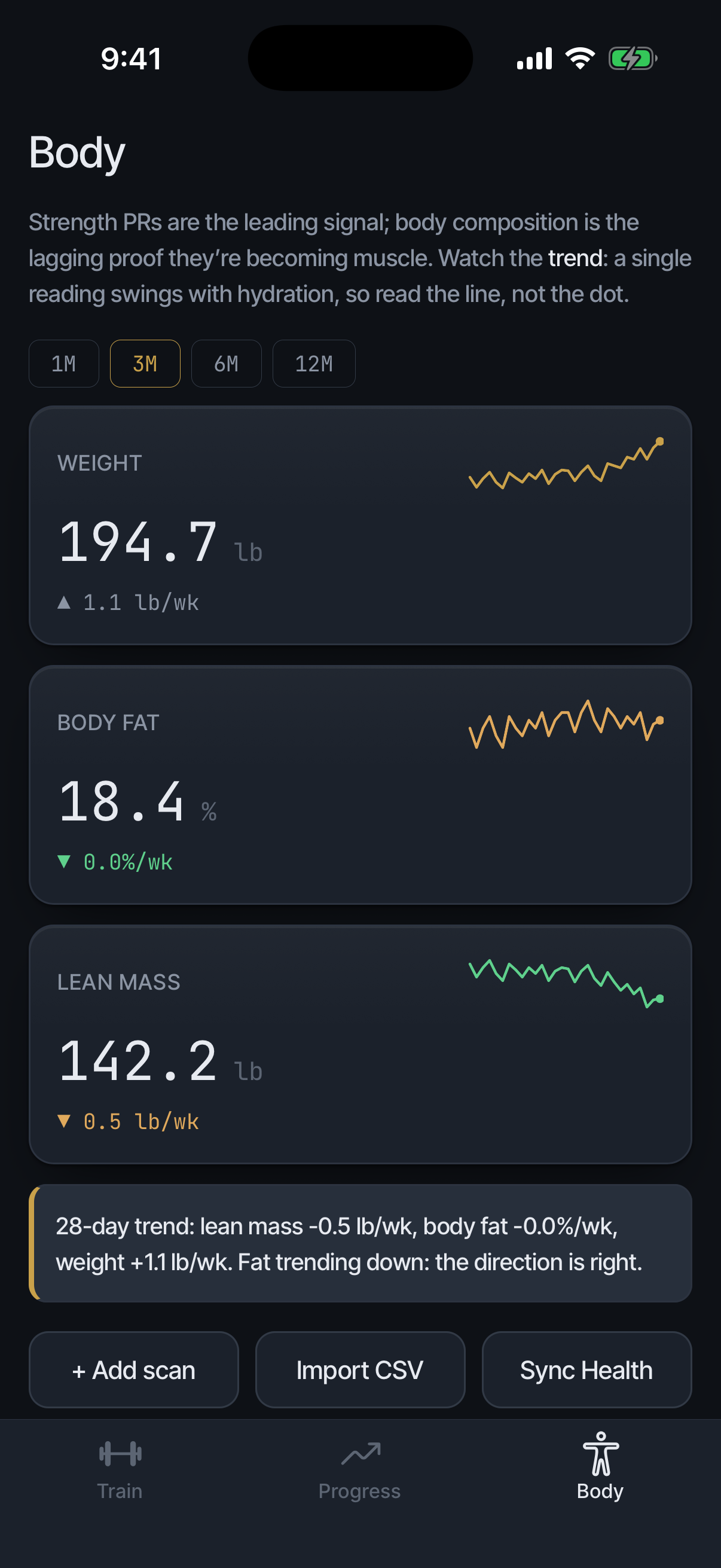
Why body data lives here #
Strength leads and composition lags, so the two belong on the same page: training explains the body line weeks before the scale does. Body data stays on your phone and is never shared with a trainer.
Coach
Who has Coach #
Coach comes with Delta Plus. If you are training on a trainer's complimentary days, the Coach tab stays in place and its screen says what Plus adds; your trainer still writes your programming either way. Everything below describes Coach for anyone who has it.
What Coach draws on #
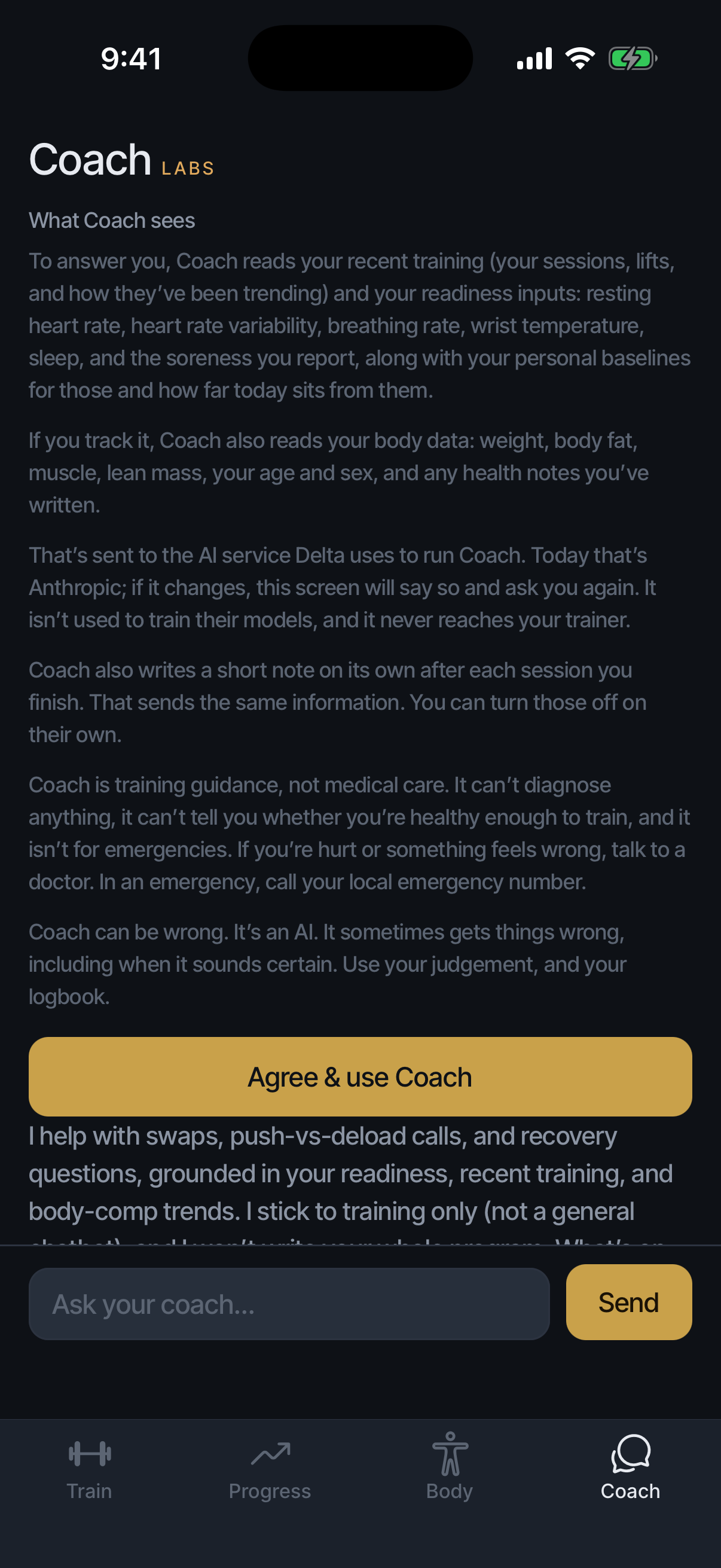
Your training log, your readiness and its signals, your body composition trends, your optional profile, and the health notes you have written, sent word for word. All of it leaves your phone when you use Coach.
It answers in your own numbers: your readiness, your baseline, your two-week rate. Not a chatbot with a gym vocabulary; an exchange grounded in your log.
The Coach screen #
Type in Ask your coach… and tap Send; a reply takes a moment and the conversation is kept when you come back. Three chips above the box are questions worth asking today; tap one to send it. Coach has a daily limit, and the screen says how many messages are left.
When Coach opens with an observation, Monitor this adds the lift to the WATCHING strip at the top, and Coach keeps an eye on it across sessions; × on the strip stops. No thanks dismisses the observation.
When Coach suggests a change to your program, it appears as a card with Apply and Not now. Nothing changes until you tap Apply.
The watch-list #
Put a lift on the watch-list and Coach tracks it explicitly, flagging stalls and suggesting the next move for that lift in particular.
Proactive observations #
Coach may surface one observation worth acting on. Choose when in Settings, under Coach insights: After sessions, Before and after, or Off. Off means off.
The profile #
What you would tell a human trainer. It shapes advice only; it never enters any number, score, or chart.
Link with a code #
A trainer's code needs you signed in, and needs YOUR NAME filled in, because that is what they see. If the code is refused, the screen says why: your trainer has no free seat right now, the code has expired, or it does not look like a code. If you are already linked to a trainer, the screen says ALREADY LINKED; end that link in Settings, then Sharing, first. Accepting can come with complimentary days of Delta that end with the link; the consent screen says whether it does.
What a trainer sees, and never sees #
Sees: your program, your sessions, your logged sets. Never sees: your body data, your Coach conversations, or your readiness. The readiness score and the signals behind it never reach a trainer; what Coach itself sends to answer you is covered in Part 11.
Proposals #
A trainer proposes changes to your program. Anything that would touch a slot you customized, or remove a lift, waits for your tap: Keep mine or Take the update. Other updates apply on their own, and Train shows you what changed. Your own edits are never overwritten, and declining needs no reason.
End the link #
End it any time in Settings, then Trainer. Sharing stops immediately. Your history is yours and stays.
If your trainer ends the link, Train shows TRAINING LINK ENDED with the date. Your program and history stay exactly as they are; the link is what ended.
Where it lives #
Your logbook lives on your device and syncs through your account. Device backups ride iCloud like any app's data.
One exception: using Coach sends your training data to a model provider to answer you. The app names everything it sends before you agree.
Export to JSON #
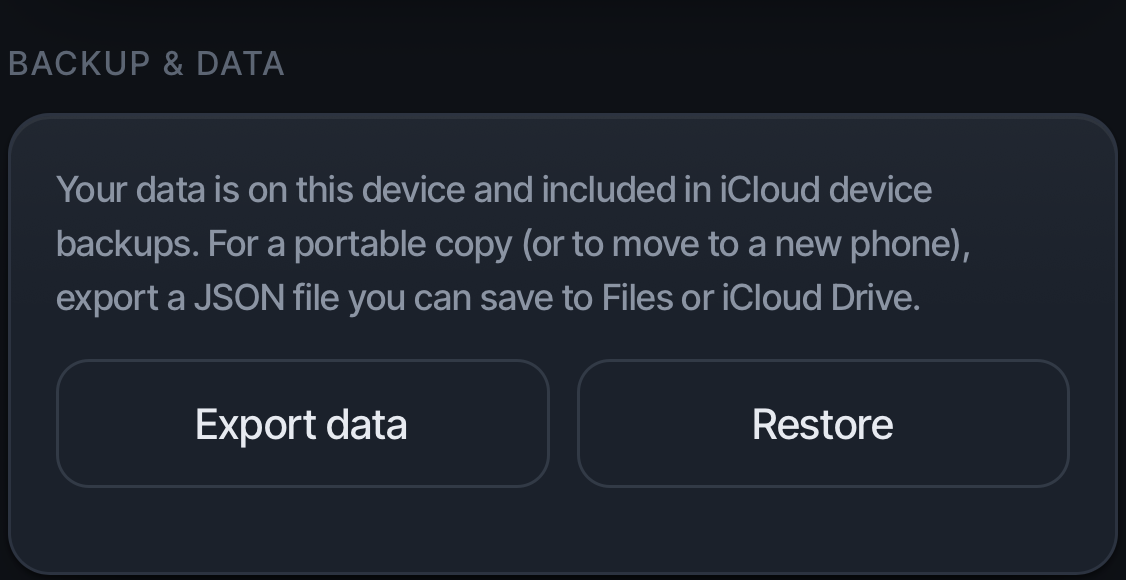
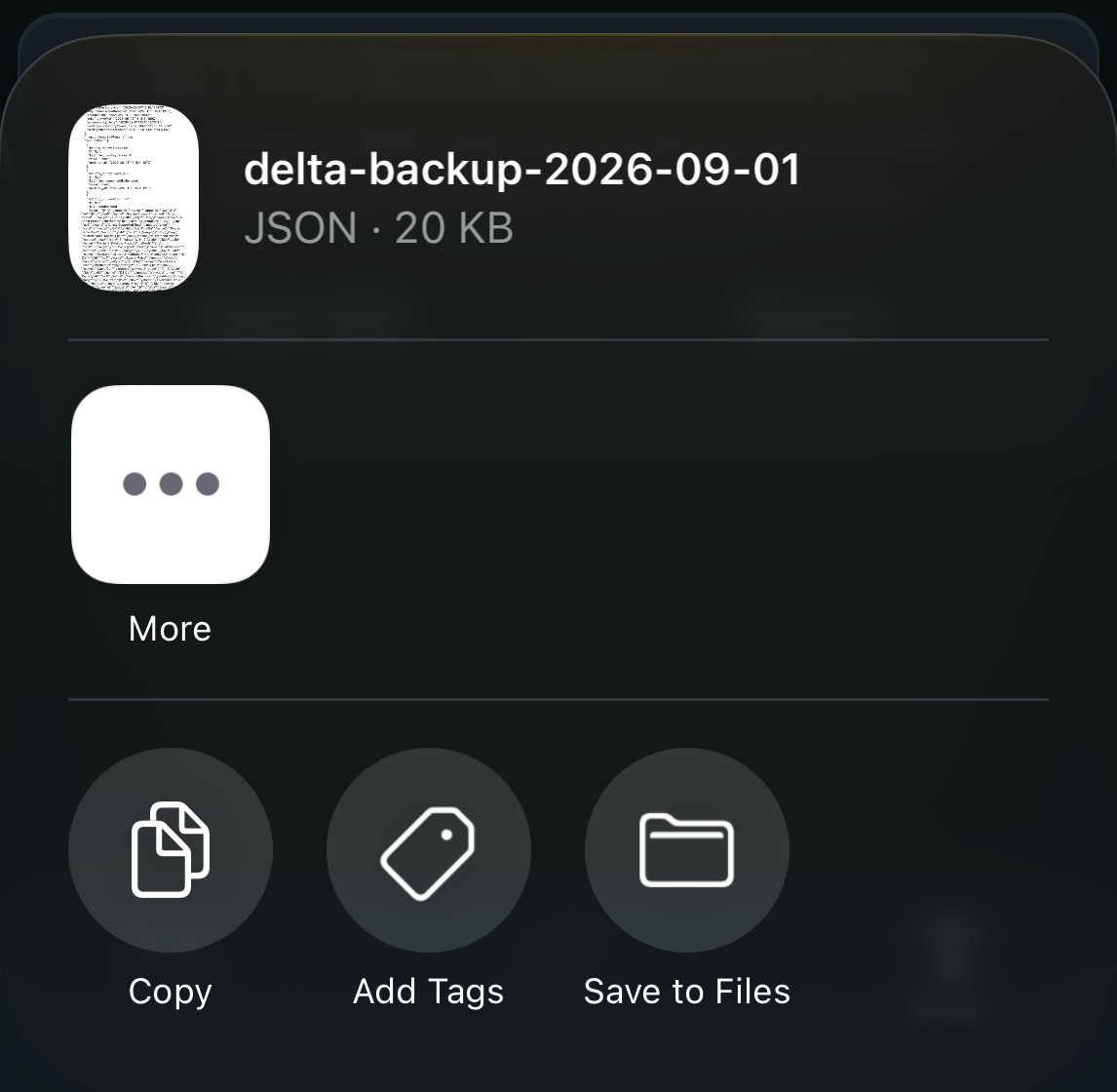
On the Body tab, under Backup & data, tap Export data. The export is unfiltered: it contains everything Delta holds on this phone, including your programs, every logged session set by set, your exercise catalogue including custom lifts, your body readings, your Coach conversations, and your health notes. It is yours to keep and readable by anything that reads JSON.
Restore #
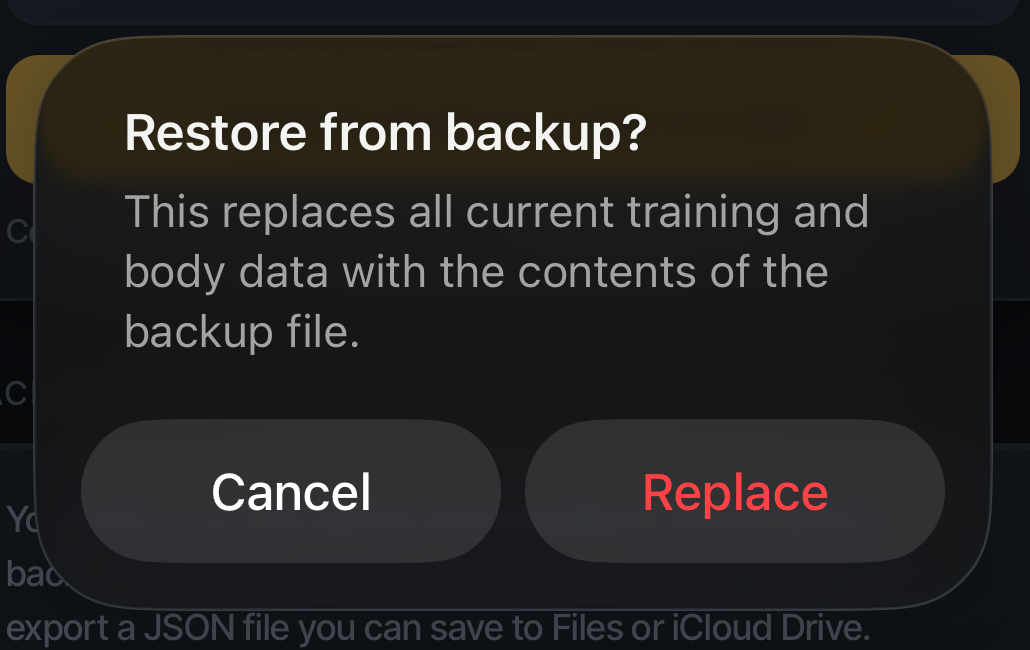
Restore sits beside Export data on the same card. Restoring replaces what is on this device, and Delta warns you plainly before it writes anything.
Delete your account #
Deleting removes your account and server-side data. Workouts already written to Apple Health remain in Health, because that data is Apple's to keep and yours to manage there.
Your account #
Settings, then Account. The name your trainer sees is what they see when you accept their code, and you need one entered to accept. Manage subscription opens your App Store subscription. Restore Purchases re-checks the App Store if a subscription you paid for is not showing. Sign out signs this phone out; your data stays on the server and comes back when you sign in again.
Diagnostics #
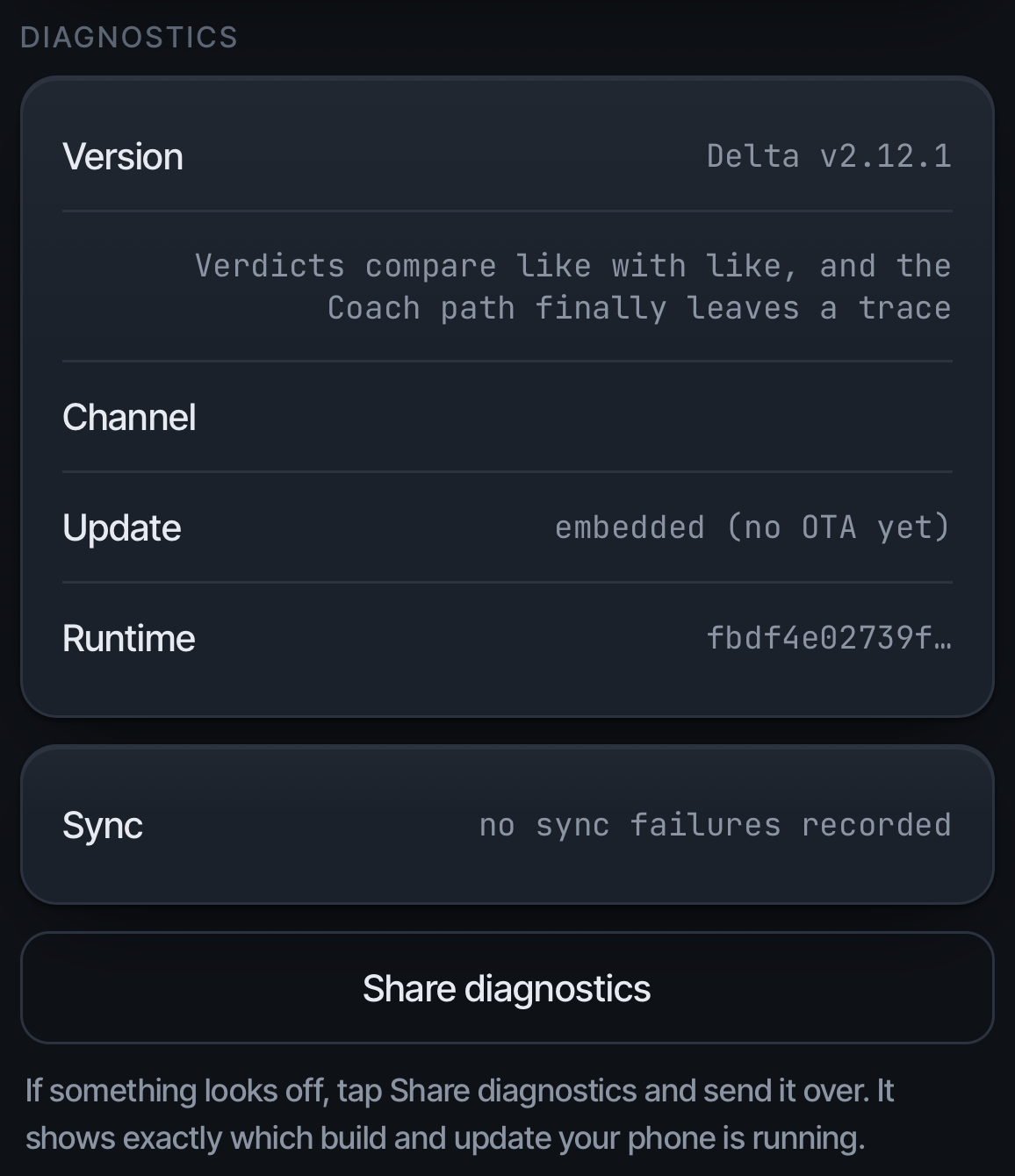
Settings, then Diagnostics reports your version and build. If support asks, tap Share diagnostics; it sends a diagnostics summary of seven plain-text lines: version, build, channel, update, published, runtime, and a sync summary. The summary contains no training data.
Send diagnostics sends this phone's event log straight to Delta and shows a reference code. Quote the code when you write to support and the report can be found at once. It records what the app did, not your logbook, your health data, or anything you asked Coach.
The Labs-gated diagnostic exports #
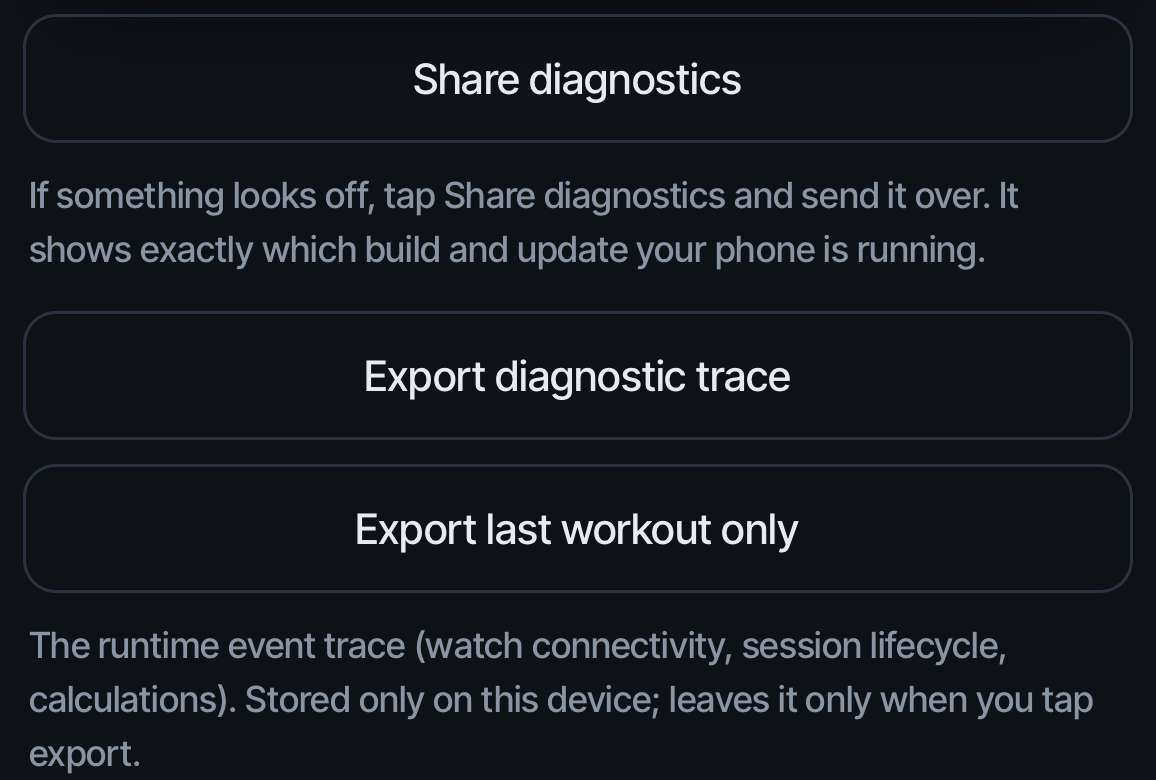
With Labs on, two more controls appear below Share diagnostics: Export diagnostic trace and Export last workout only. Both export the event ring buffer, which does carry training data: exercise names, per-set reps relayed from the watch, myo totals, PR flags, and search queries you typed.
They are absent by default; a clean install comes up with Labs off and neither button renders. They exist for a developer reading a defect, not for routine support. If support asks for diagnostics, Share diagnostics is the control they mean.
Health is not syncing #
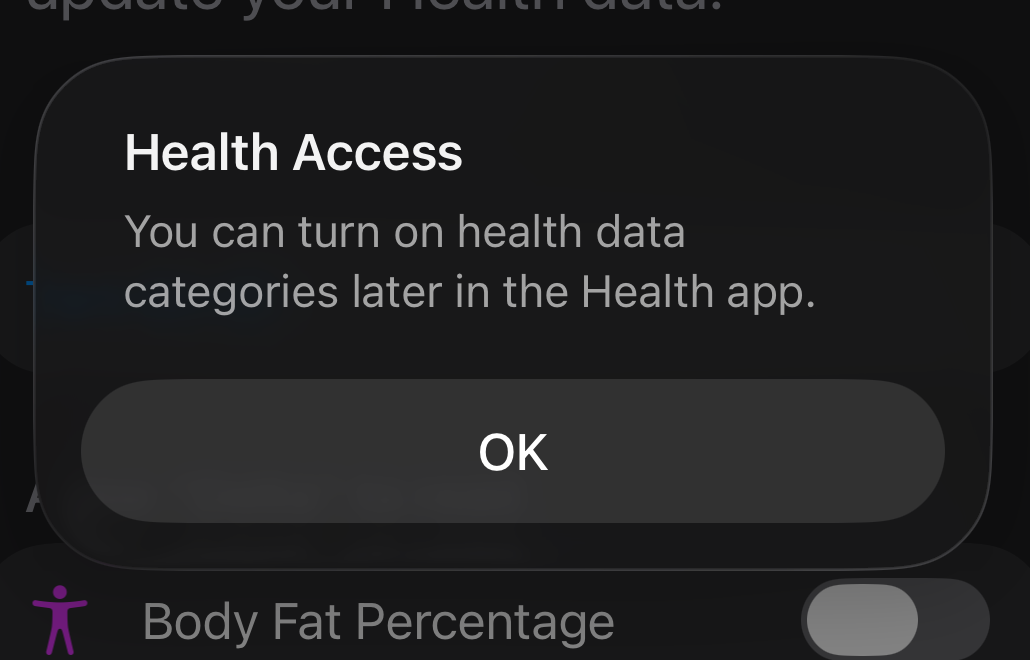
Symptom: readiness shows missing signals. Likely cause: iOS permission switched off. Fix: open the iOS Health app, Sharing, Apps, Delta, and re-enable. Delta cannot flip these switches for you.
The watch is not showing the session #
Symptom: session open on the phone, watch idle. Likely cause: devices out of range or watch app not installed. Fix: bring the devices together and raise the wrist; if Delta is missing on the watch, install it from the iPhone Watch app.
The catalogue says a lift needs a decision #
Symptom: a lift shows "needs a decision" after an import. Likely cause: an incoming exercise resembles one you already have. An exact name match maps on its own; anything less is proposed to you. Fix: open the catalogue entry and choose Keep as mine, Use its setup, or Don’t offer. If two entries turn out to be one lift, Settings, then Same lift, two entries, merges them. History is preserved either way.
A banner on Train #
Delta free through … · N days left: your trial or complimentary period, and when it ends. Your Delta access has ended with Get access back: the trial or subscription is over; tap to choose a plan, or email support@deltafitness.app with a question. On the plan screen, Have a code? redeems a code, Export my data gives you everything Delta holds before you decide, and Not you? Sign out switches accounts.
TRAINING LINK ENDED: your trainer ended the link on the date shown; × dismisses it. NOTICE: a message from Delta about your account; Got it marks it read. The Terms of Service changed: read them, then Agree & continue.
History looks missing after a rename or switch #
Symptom: a lift's numbers seem gone after renaming it or switching programs. Likely cause: you are looking at a different lift; history follows the lift, not the name or the program. Fix: find the lift in the exercise catalogue; its full history is attached there.
The rest timer is not firing #
Symptom: no countdown after a set. Likely cause: the timer is off globally, or off for this lift; stepping a lift's rest below the shortest step turns it off. Fix: check the lift's rest control first, then the global setting. For missing notifications, check iOS notification permissions for Delta.
The plate at the top of this page states which app version the manual describes. A reader checks their own version in Settings, then Diagnostics, which reports version and build.
The manual is versioned with the app, not on its own clock. Every release that changes a screen or a behavior described here ships with the matching manual edit in the same review; the plate updates as part of that edit, never separately. Sections describing a version other than the plate are not permitted, which keeps the whole document one coherent snapshot. Older releases keep their manual: the plate links to prior snapshots once more than one exists.
When a mismatch is possible during rollout, the honest sentence is one line under the plate: "You may be on an earlier version; check Diagnostics." Never guess at behavior across versions.